AI Integration Guide
Overview
Rosetta DBT Studio includes built-in AI assistance to help you generate dbt™ models, write SQL queries, and automate data transformations. To use the AI features you need to connect at least one AI provider.
Supported AI Providers
| Provider | API Key |
|---|---|
| Google Gemini | aistudio.google.com |
| OpenAI | platform.openai.com |
| Anthropic | console.anthropic.com |
| Ollama | No API key required |
| OpenAI Compatible | Optional — depends on the service |
| LM Studio | No API key required |
Setup
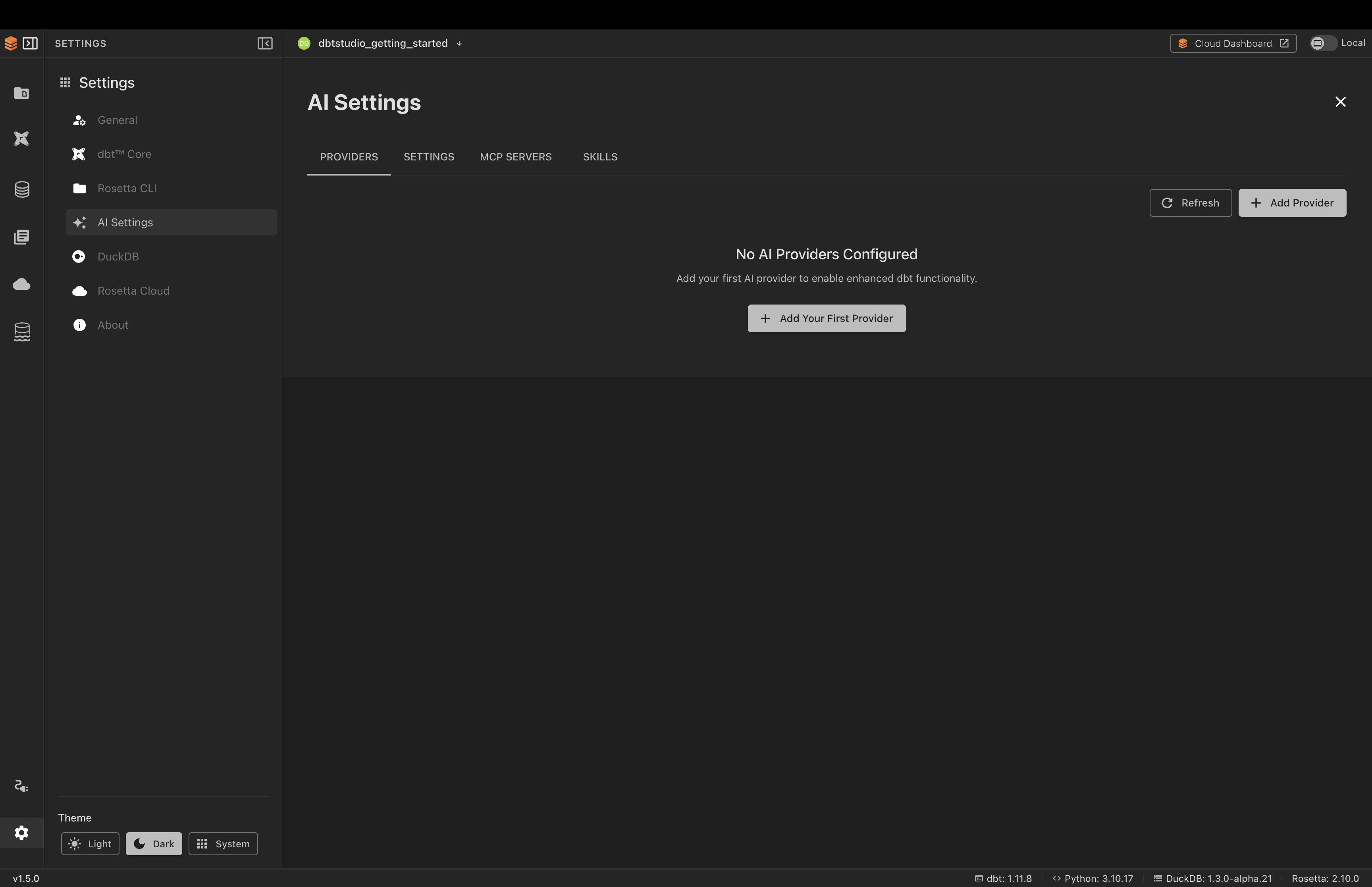
Step 1 — Open AI Settings
- Click Settings at the bottom of the left sidebar
- Click AI Settings
Step 2 — Add a Provider
- Click Add Your First Provider
- Fill in the fields:
- Provider Name — a label for your reference
- Provider Type — select your provider from the dropdown
- API Key — paste your key here
- Click Test Connection to verify your key works
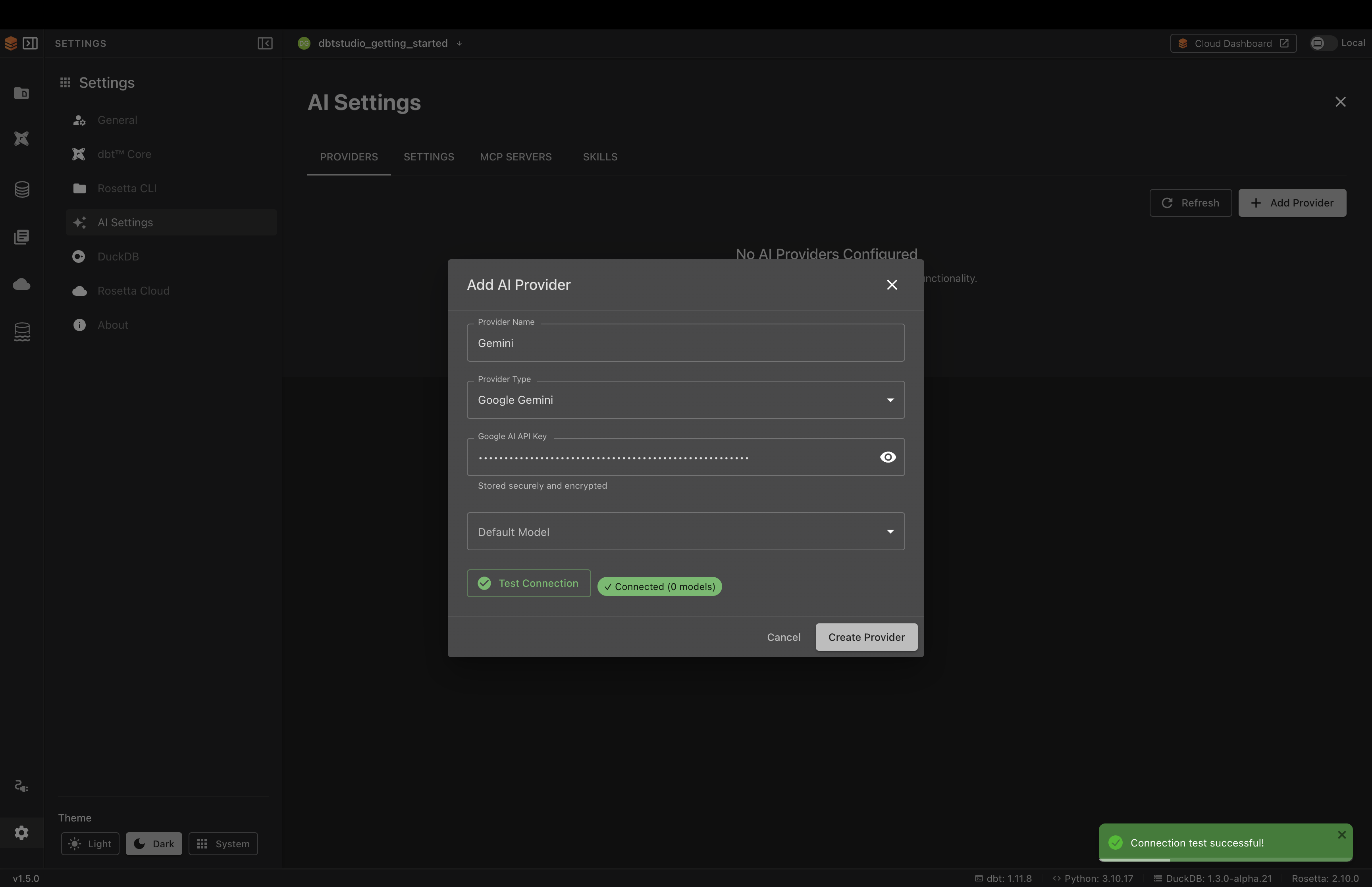
- Click Create Provider
Step 3 — Select a Model and Set Active
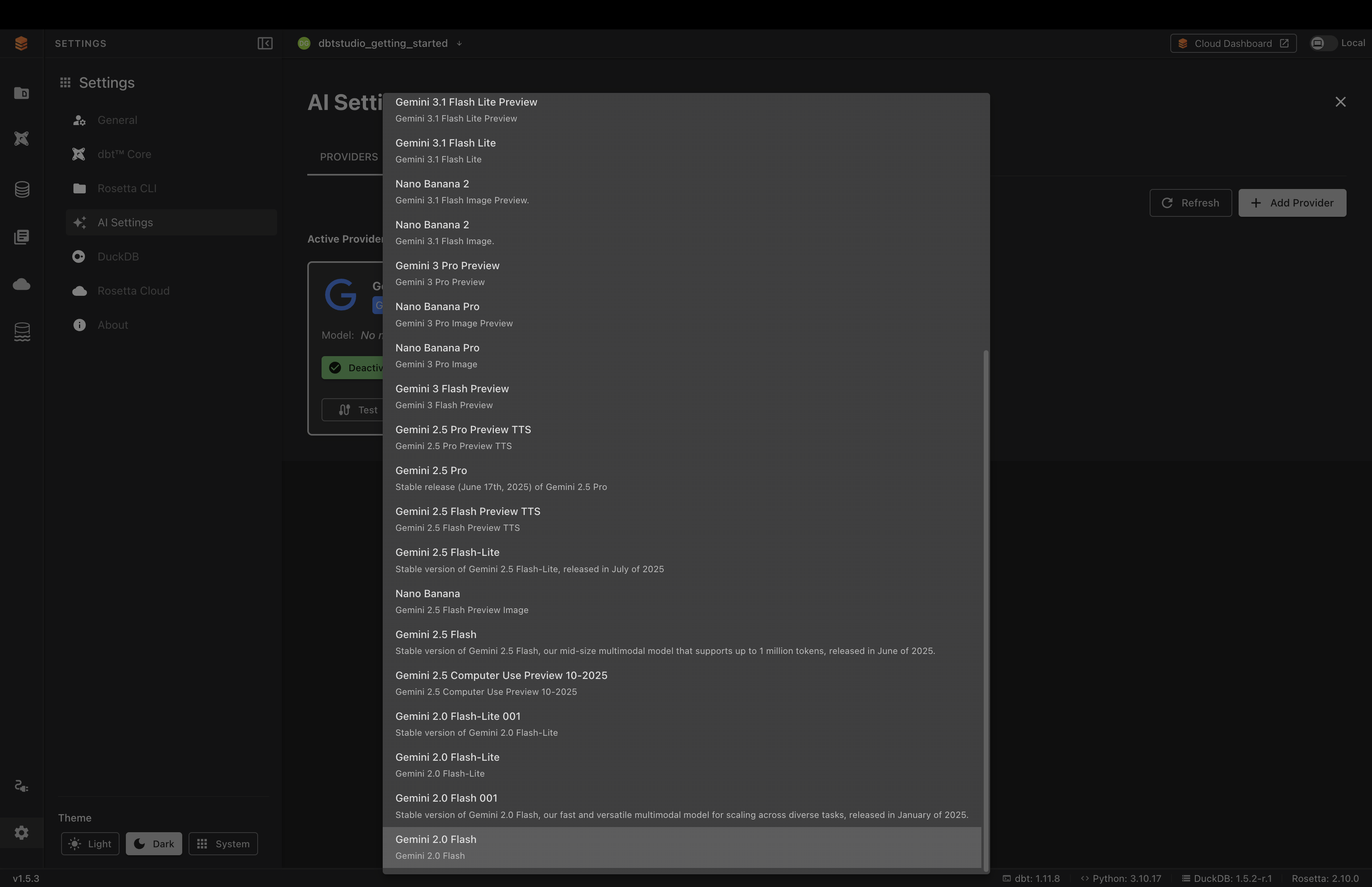
- Click Edit on your provider card
- Open the Default Model dropdown and select a model
- Save your changes
- Click Set Active
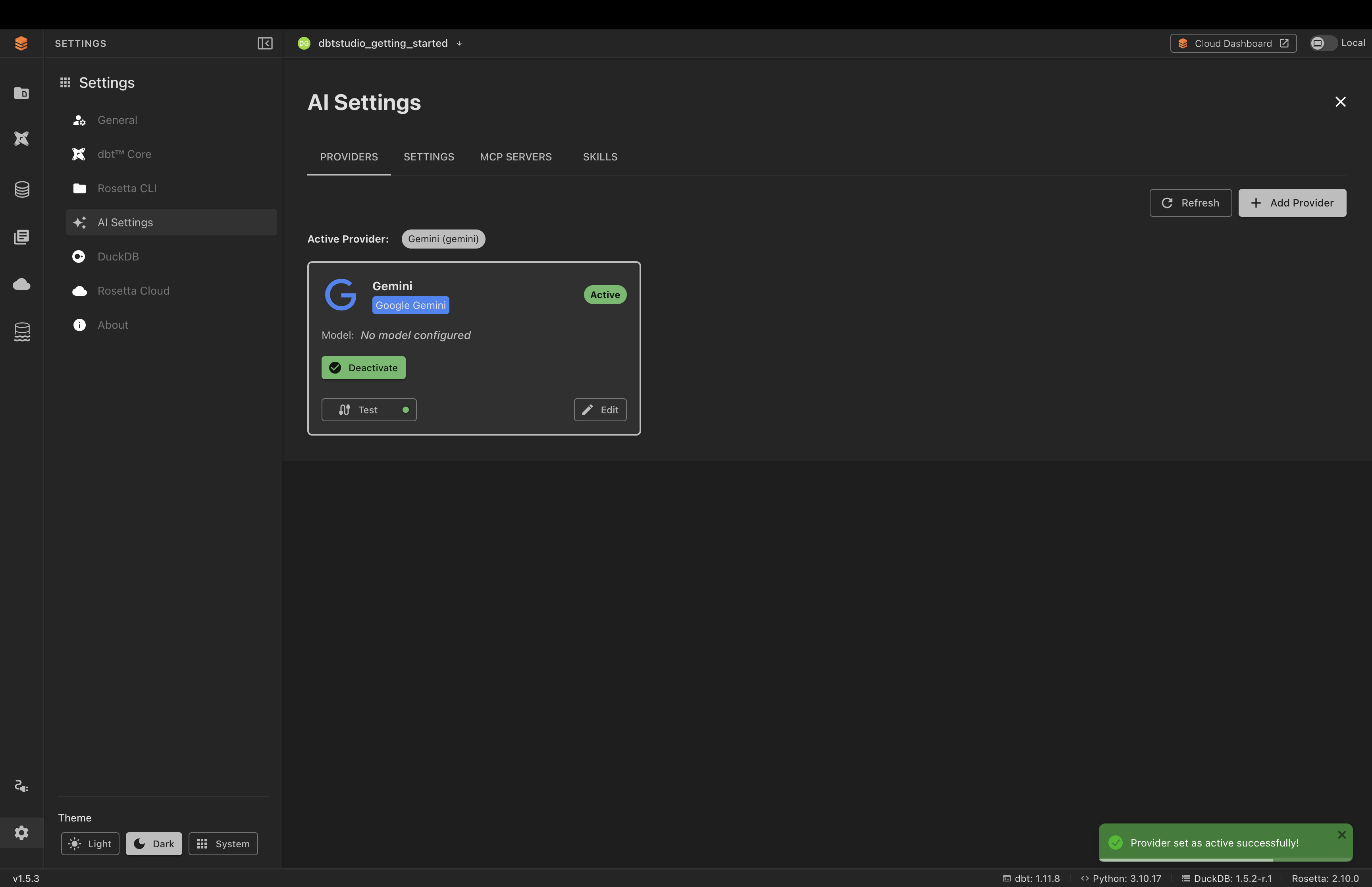
Your provider is now active and ready to use:
Ollama Setup
Ollama runs entirely on your computer with no API key required.
- Download and install Ollama from ollama.com
- Open your terminal and pull a model:
- In Rosetta DBT Studio go to Settings → AI Settings
- Click Add Provider and select Ollama
- Set the Base URL to
http://localhost:11434 - Click Test Connection
- Select your model and click Set Active
OpenAI Compatible Setup
Use this provider to connect any AI service that supports the OpenAI API format. Instead of choosing a built-in provider, you supply the service's address yourself — which lets you connect services like Groq, Together, or OpenRouter, or a model hosted inside your own company.
- Get the Base URL (and an API key, if the service requires one) from your AI service
- In Rosetta DBT Studio go to Settings → AI Settings
- Click Add Provider and select OpenAI Compatible
- Fill in the fields:
- Provider Name — a label for your reference
- Base URL — the service's API endpoint (usually ends in
/v1) - API Key — optional; enter one only if your service requires it
- Click Test Connection
- Select your model and click Set Active
LM Studio Setup
LM Studio runs open-source models on your own computer, with no API key required. It works the same way as Ollama.
- Download and install LM Studio from lmstudio.ai
- In LM Studio, download a model from the Discover tab
- Open the Local Server tab, select your model, and click Start Server (it runs on port
1234by default) - In Rosetta DBT Studio go to Settings → AI Settings
- Click Add Provider and select LM Studio
- Leave Base URL empty to use the default local server — only fill it in if you changed the port or are using a cloud-hosted deployment
- Click Test Connection
- Select your model and click Set Active
Note: For a cloud-hosted LM Studio deployment, set the remote Base URL and add an API Key (optional field).
Accessing AI Features
Once your provider is active, AI features are available in the DBT Studio editor. Open any SQL model file and click the AI button at the top right of the editor.
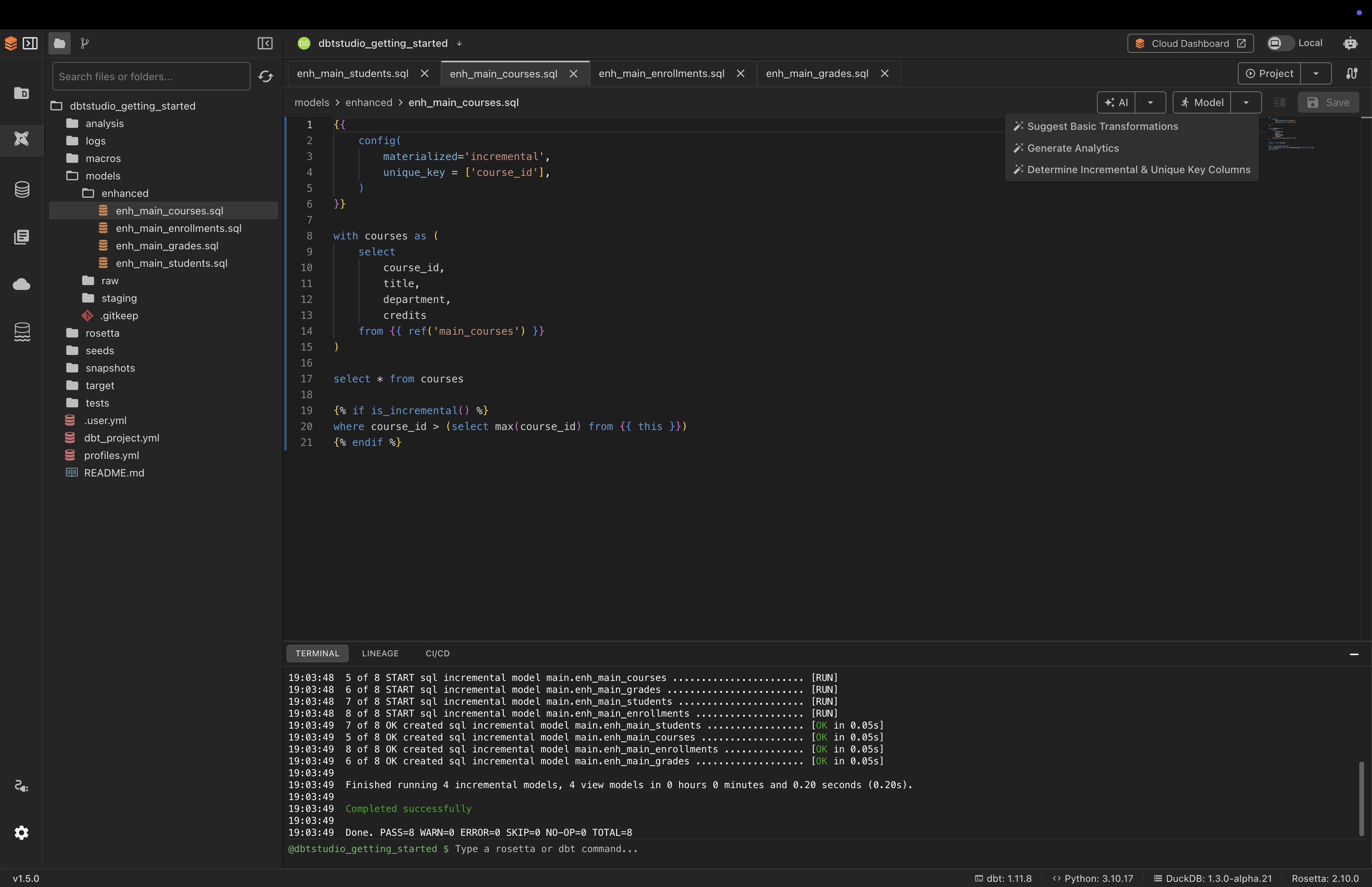
For full details on using AI features see AI Assistant.
Common Issues
AI features are greyed out → No provider is configured or set as active. Follow the setup steps above.
Connection test failed → Check your API key was copied correctly with no extra spaces.
Invalid API key error → Your key may have expired. Generate a new one from your provider's website.
Ollama not connecting → Make sure the Ollama app is running before testing the connection.
OpenAI Compatible or LM Studio not connecting
→ Make sure the service (or LM Studio's local server) is running, and that the Base URL is correct — leave it empty to use LM Studio's default, or include the /v1 path if your service requires it.