AI Assistant
Overview
The AI Assistant is an agent, not a chatbot — it doesn't just suggest code for you to copy. It reads your actual project, writes and edits files directly, runs dbt™ commands, and reads the results, working in a loop until the task is done.
The agent panel sits alongside the file explorer and editor in the same window, so there's no switching tools to use it.
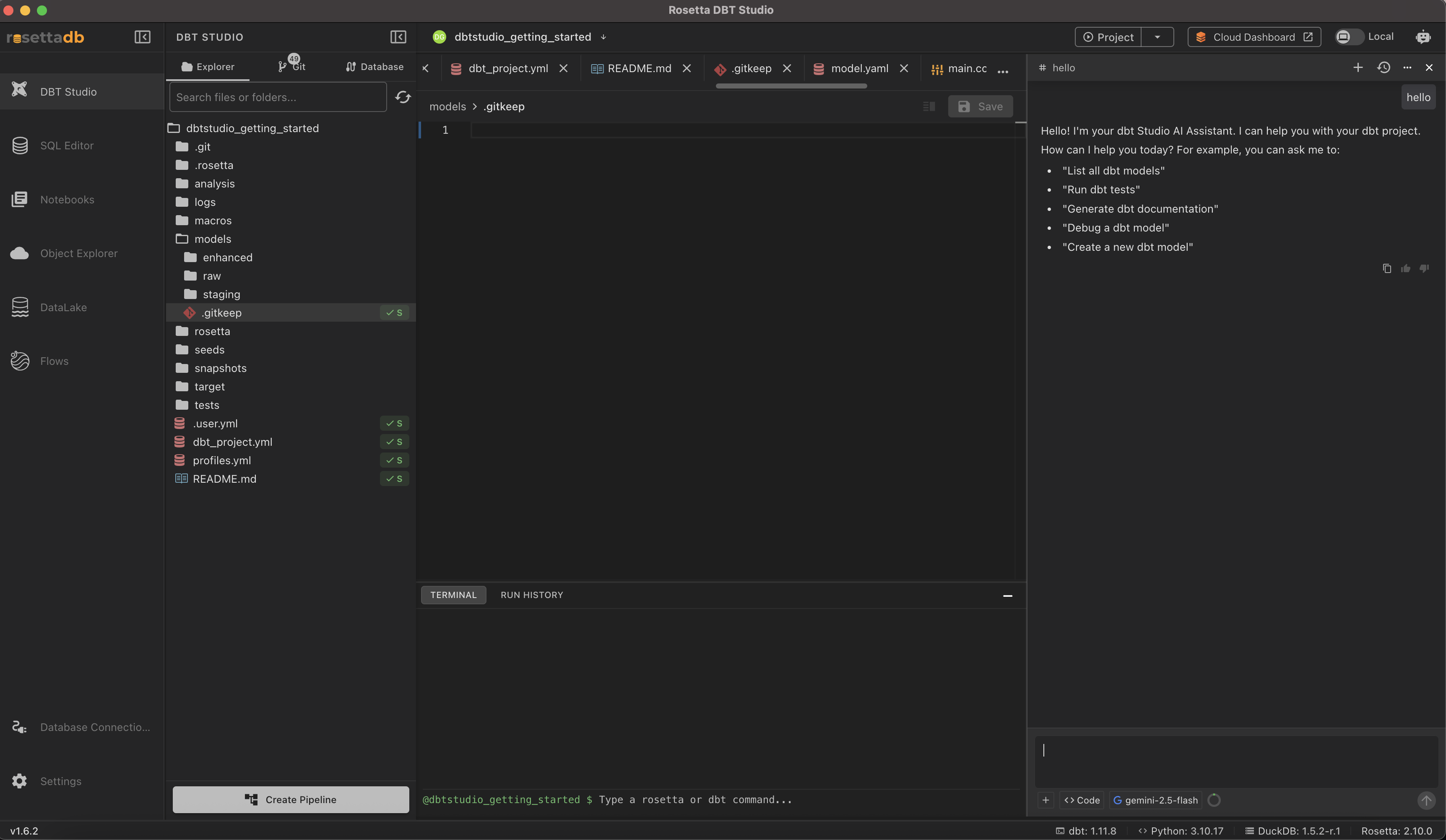
To use it, first set up an AI provider — see the AI Integration Guide for OpenAI, Anthropic, Gemini, Ollama, and other supported providers, including fully local models.
How the Agent Works
Give the agent a plain-English instruction, for example:
Create a staging model for my customers table
The agent then works through the task step by step — reading your project's directories, checking existing schema and config files, drafting SQL that follows dbt™ conventions, and editing the files. Every step is shown as it happens in the chat panel, including the SQL and YAML it writes.
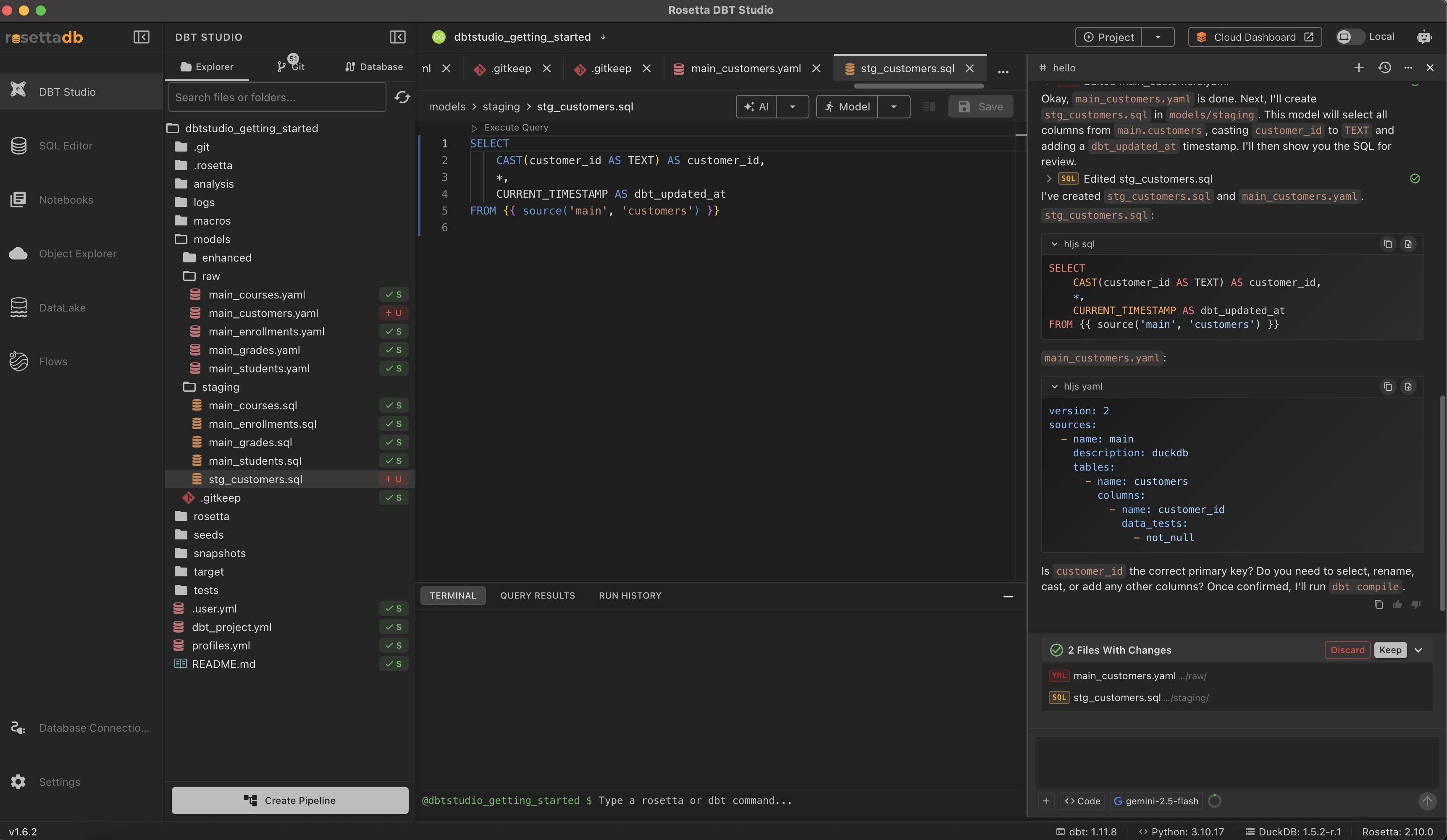
If something is ambiguous, the agent asks — for example, confirming which column should be the primary key before continuing.
Reviewing Changes
Files the agent creates or edits open automatically as editor tabs, so you see the result the moment it's written.
At the end of a task, changed files are listed together, and you choose:
- Keep — accept the changes
- Discard — roll them back
You're always the one who decides whether a change sticks.
Command Approval
Before the agent runs a terminal command — such as dbt compile or dbt run — it shows you exactly what it wants to execute and waits for your approval before running it. Nothing runs without your say-so.
Security
Your warehouse credentials and API keys are stored in your operating system's secure keychain — the same Keystore covered in Settings.
Skills
Skills teach the agent how your team works — naming conventions, SQL style guides, or any workflow you want it to follow consistently.
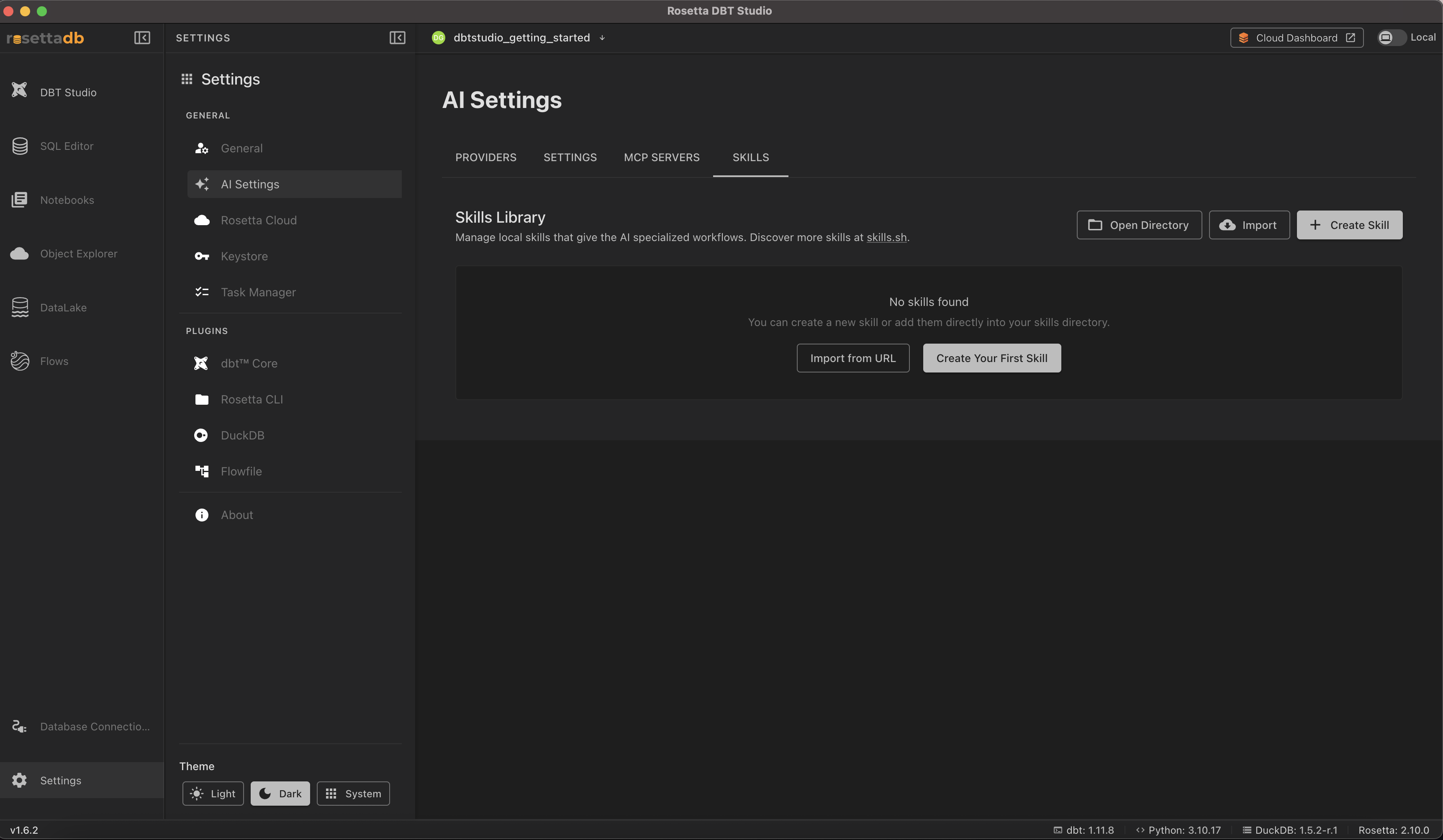
- Create Skill — write a markdown file describing your convention
- Import / Import from URL — bring in a skill from elsewhere
- Open Directory — see where skills are stored on disk
Discover community-contributed skills at skills.sh.
MCP Servers
MCP (Model Context Protocol) servers give the agent access to reference documentation and tools, running locally as child processes alongside the app.
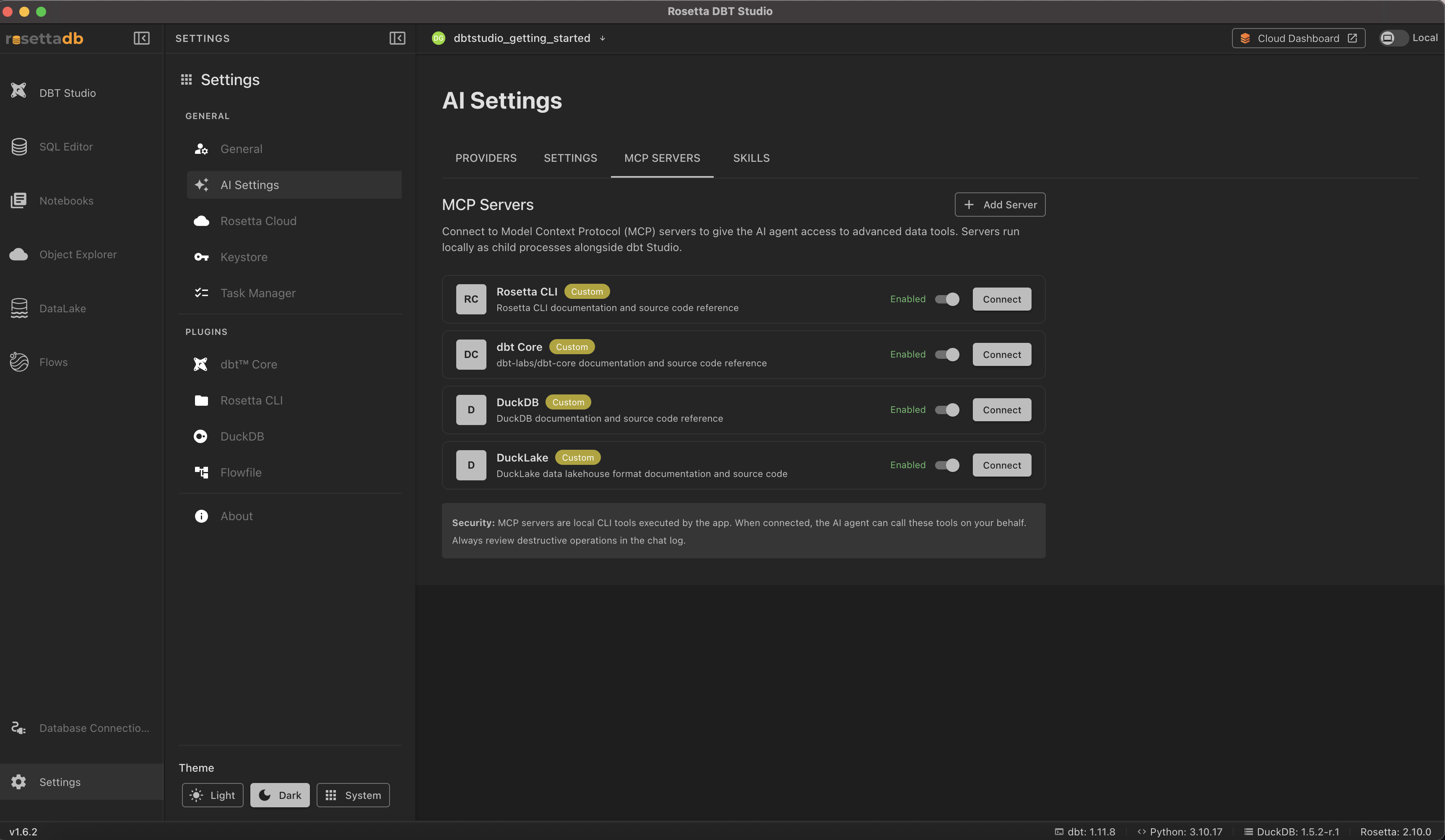
Out of the box, the agent has access to:
- Rosetta CLI — documentation and source code reference
- dbt Core — documentation and source code reference
- DuckDB — documentation and source code reference
- DuckLake — data lakehouse format documentation and source code
Click Connect to enable a server, or Add Server to connect your own.
Security: MCP servers are local CLI tools executed by the app. When connected, the AI agent can call these tools on your behalf. Always review destructive operations in the chat log.
Context Window
As a session grows, the agent tracks how much of its context window is in use — a live breakdown of conversation tokens, project files, and MCP tool data. When the window approaches its limit, the agent automatically summarizes older messages so the conversation can continue without losing important context.
Learn More
For a full walkthrough of the AI agent in action, see the official video: Rosetta DBT Studio AI Agent
More Videos
For more on the AI agent in action, see these official videos:
- Natural Language to a Complete dbt Model with AI
- AI That Explains Your dbt Models Instantly
- Jaffle Shop AI Workflow
Common Issues
The agent isn't responding → Confirm an AI provider is configured and active in AI Settings.
A skill isn't being followed → Check it's enabled in the Skills Library, and that the markdown file clearly states the convention you want.
An MCP server won't connect → Click Connect again, or check the server's status — MCP servers run as local processes alongside the app.