Git Integration
Overview
Rosetta DBT Studio has a built-in Git client, so you can track changes, commit, branch, and push without leaving the app or opening a separate terminal.
Open it from the Git tab in the left panel, next to Explorer and Database.
Committing Changes
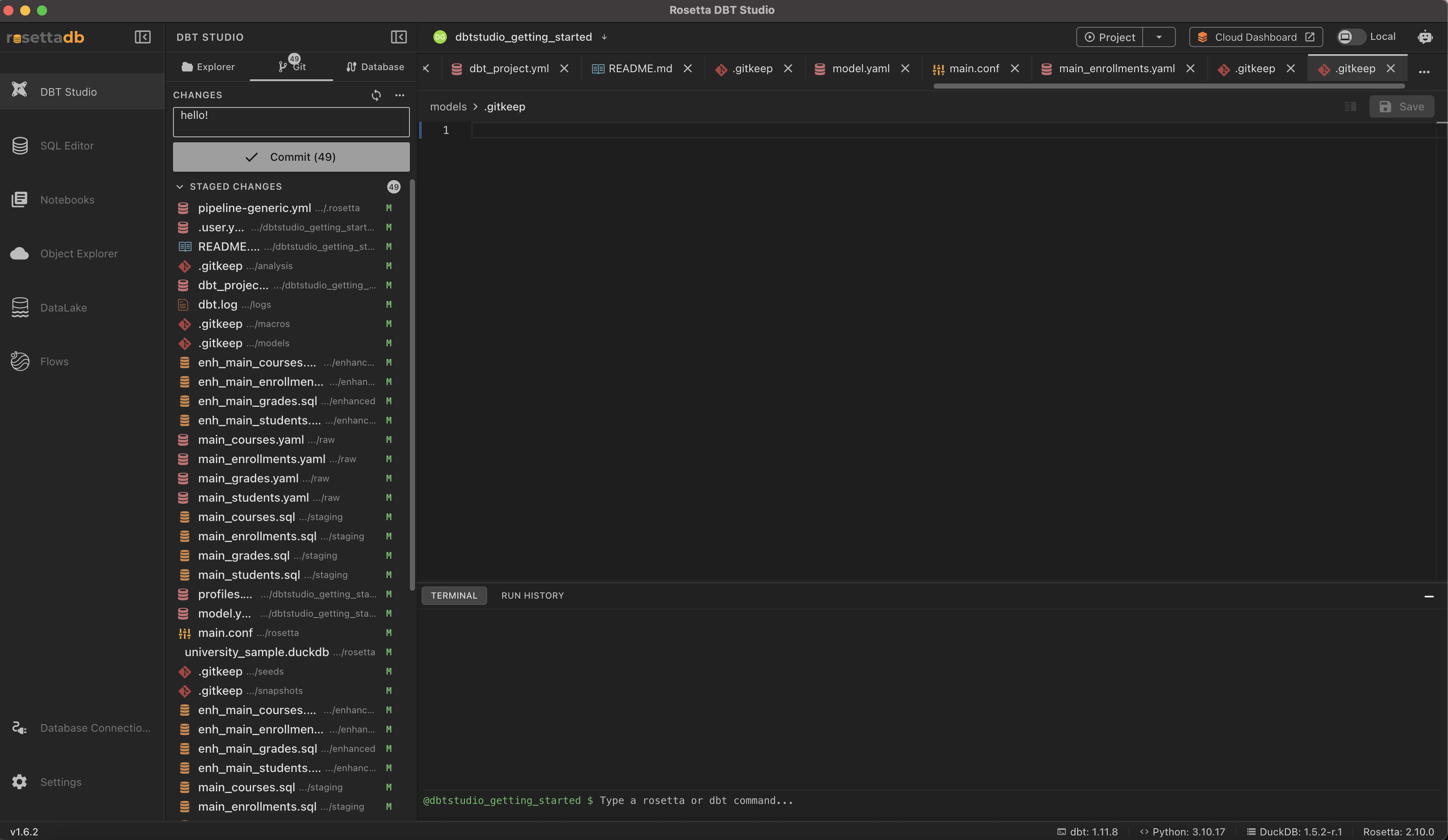
- Files you've changed appear under CHANGES
- Stage the files you want to commit — select individual files, or use Select All from the
...menu to stage everything at once - Staged files move to STAGED CHANGES
- Type a commit message in the message box
- Click Commit (it shows the number of files being committed)
Tip: Use the refresh icon next to CHANGES to re-check for new changes.
Branches
Open the ... menu next to CHANGES for branch actions:
- Create new branch
- Switch branch
- Rename branch
- Delete branch
Push and Pull
The same ... menu also has:
- Push — send your committed changes to the remote repository
- Pull — bring down changes from the remote
Common Issues
Commit button is disabled → You need at least one staged file and a commit message before you can commit.
Push fails with an authentication error → If your repository uses SSH, you may be prompted for your SSH key passphrase when committing or pushing.
A file isn't showing up under Changes → Click the refresh icon next to CHANGES to re-scan the project for changes.