Settings
Overview
The Settings screen manages how Rosetta DBT Studio runs — where projects are stored, which versions of dbt™ and the Rosetta CLI are installed, your AI providers, cloud connection, and credentials.
Open it from Settings at the bottom of the left sidebar. The Settings sidebar is split into two groups: General and Plugins.
Note: The Theme control at the bottom of the Settings sidebar (Light, Dark, System) is always visible, whichever section you're in.
General
General
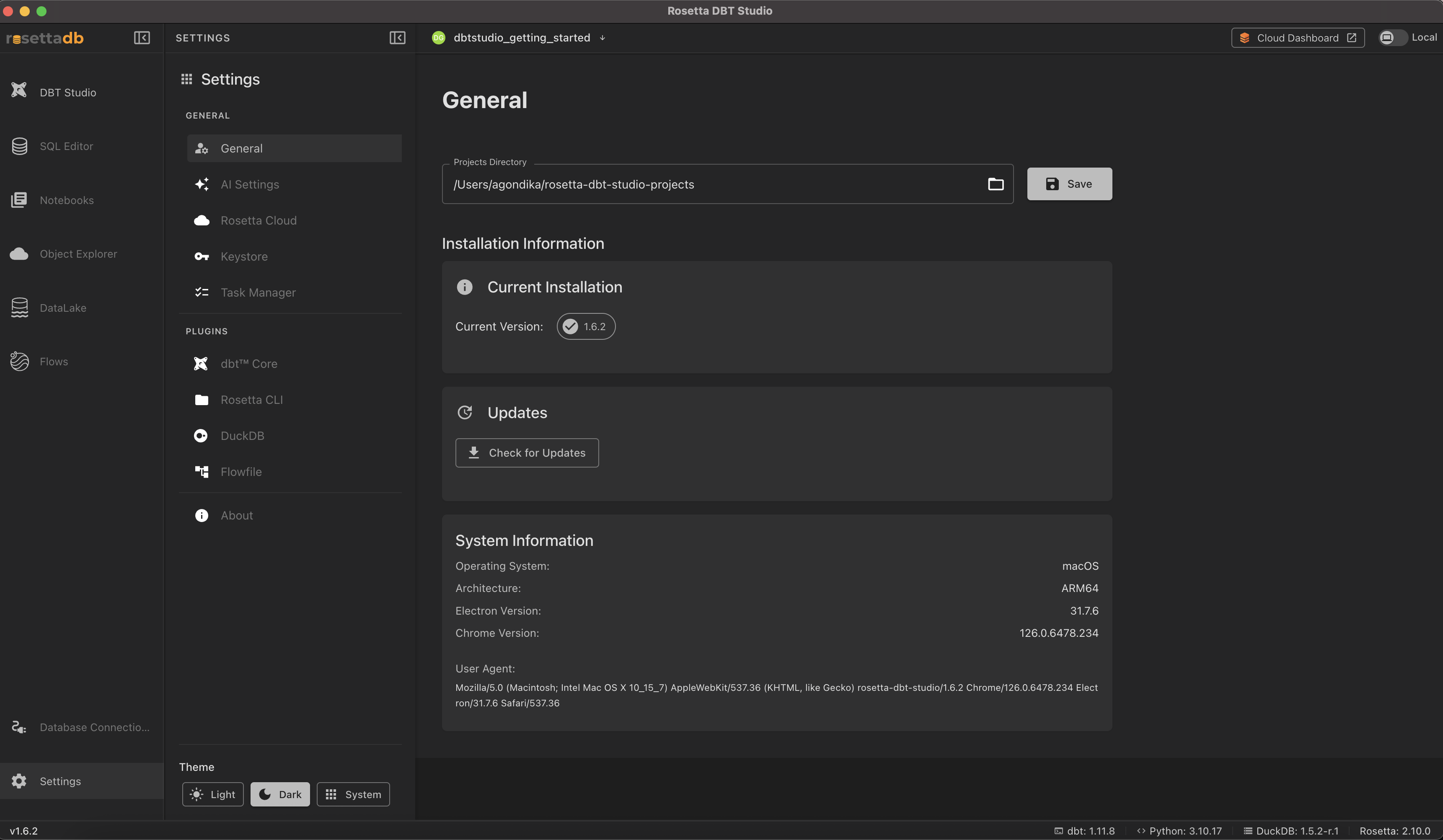
- Projects Directory — the folder where your dbt™ projects are stored. Use the folder icon to browse, then click Save.
- Installation Information — the version of Rosetta DBT Studio you're running.
- Updates — click Check for Updates to install the latest version.
- System Information — your operating system, architecture, and Electron/Chrome versions. Useful when reporting an issue.
AI Settings
Manage the AI providers that power the app's AI features.
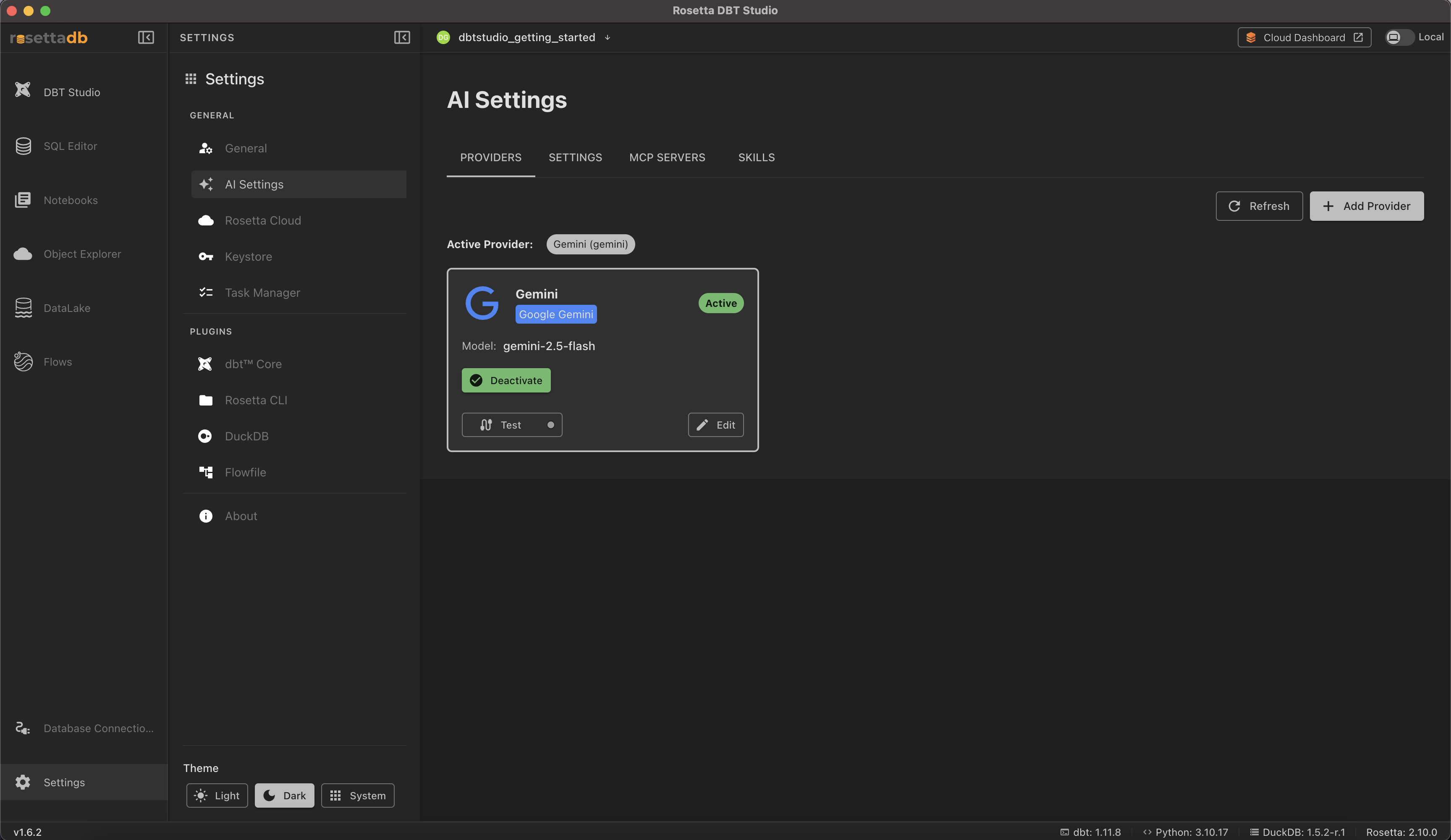
The Providers tab shows your Active Provider and each provider card, with Test, Edit, and Add Provider.
For full setup steps for every supported provider, see the AI Integration Guide.
Rosetta Cloud
Connects the app to your Rosetta Cloud Dashboard, which enables cloud features such as project deployment and profile synchronization.
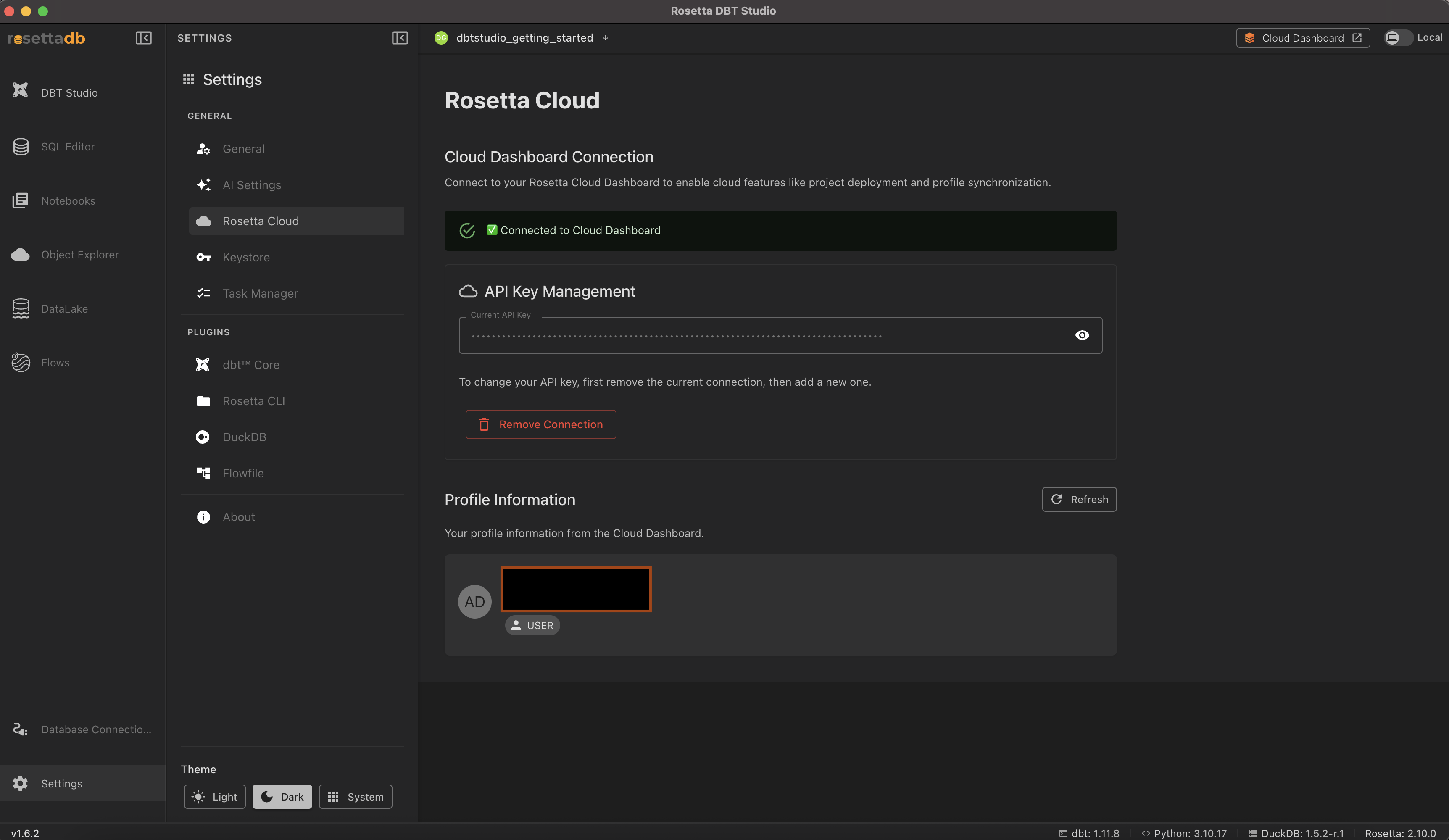
- Cloud Dashboard Connection — shows whether you're connected.
- API Key Management — your current API key. To change it, click Remove Connection and add a new one.
- Profile Information — your account details from the Cloud Dashboard. Click Refresh to update them.
Keystore
Stores credentials — API keys, passwords, and tokens — in your system keystore, encrypted at rest by the operating system, so they never sit in your project files.
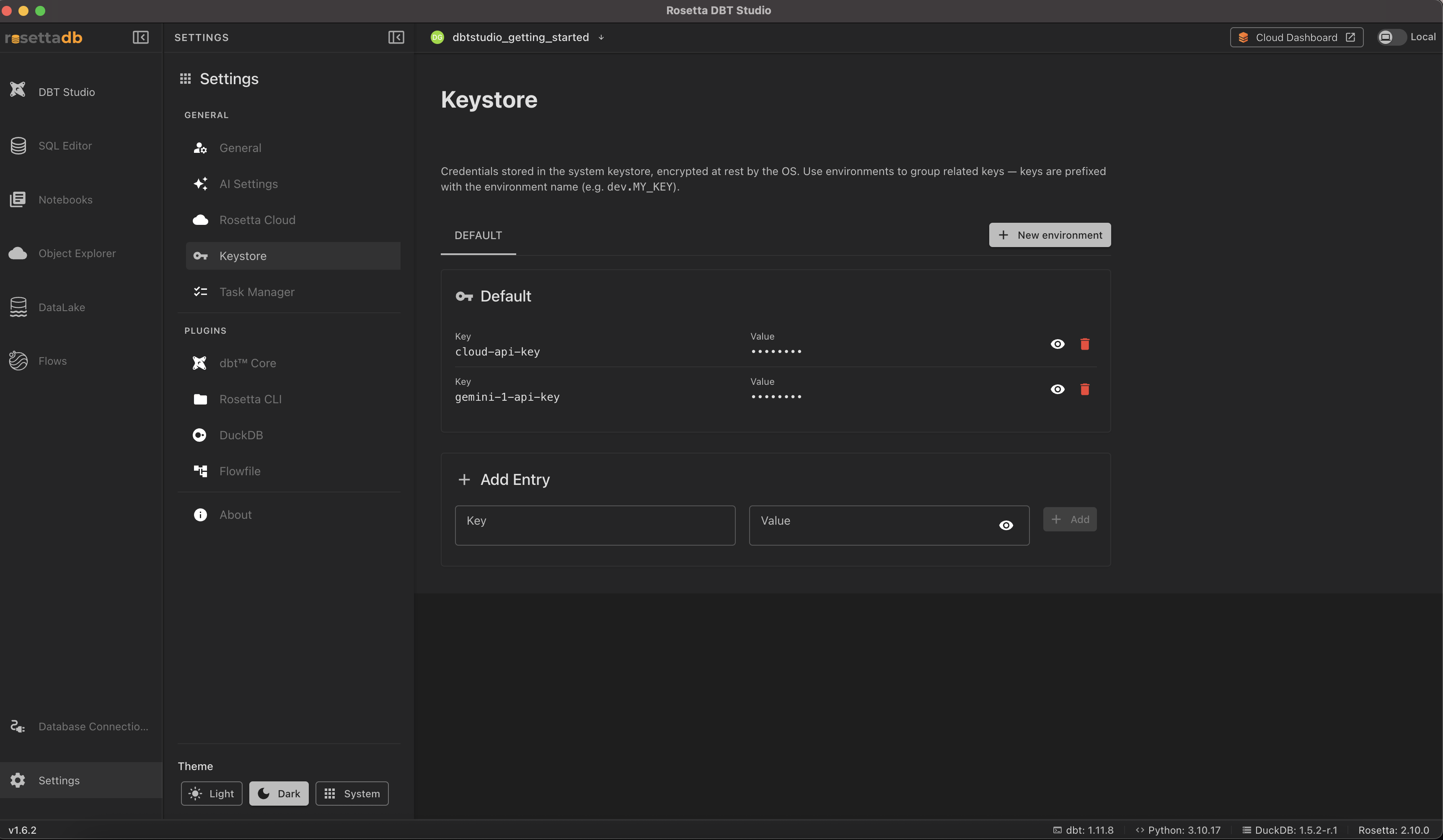
Keys are grouped into environments, and each key is prefixed with its environment name (for example dev.MY_KEY). Click New environment to add another environment.
To add a credential:
- Enter a Key and a Value under Add Entry
- Click Add
Each stored entry has an eye icon to reveal its value and a trash icon to delete it.
Task Manager
Tracks long-running background operations — such as Object Explorer downloads — so they keep running even if you navigate to a different screen.
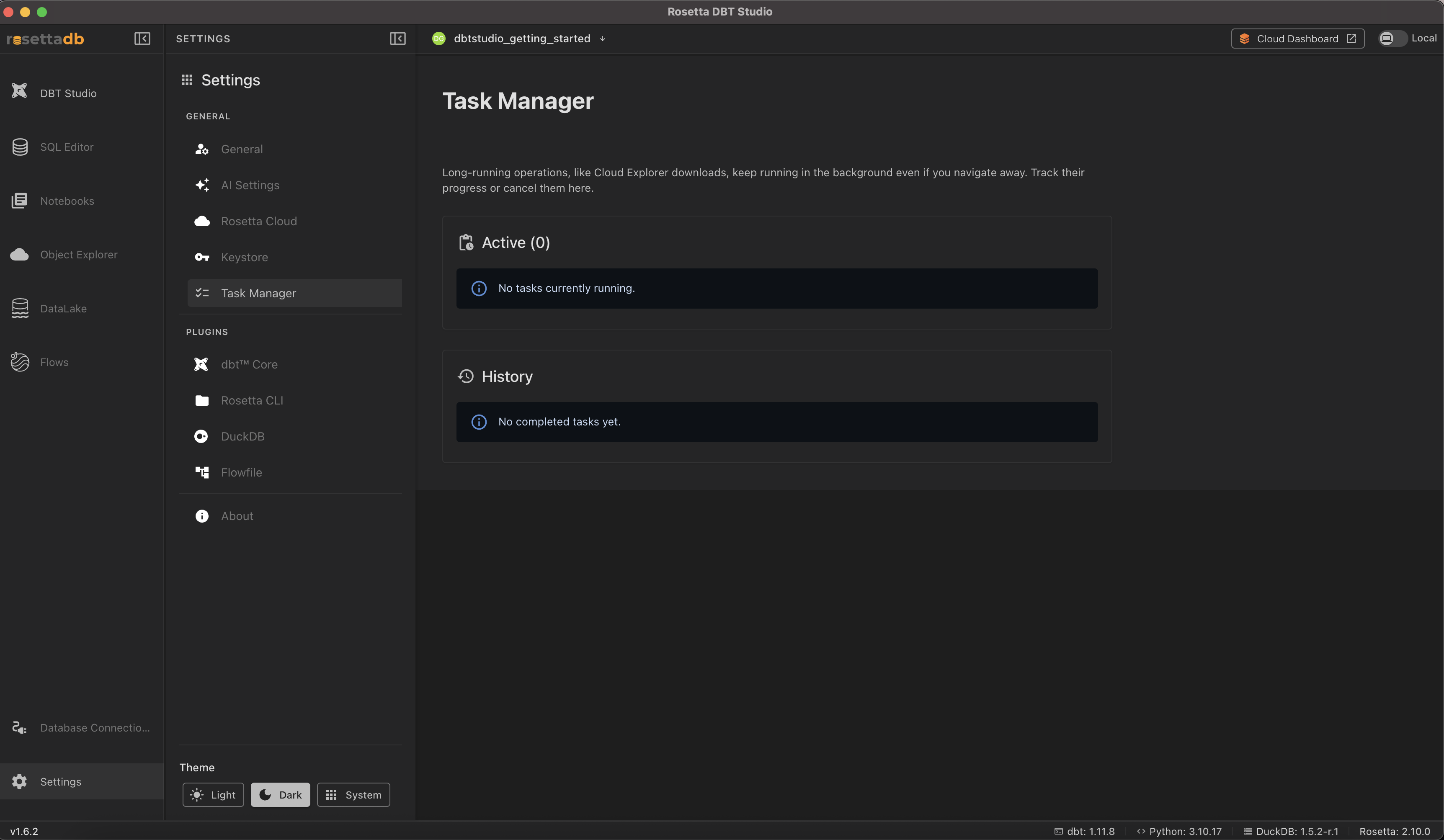
- Active — operations currently running. Track their progress or cancel them here.
- History — completed operations.
Plugins
dbt™ Core
Rosetta DBT Studio bundles its own Python environment and manages dbt™ for you, so you don't have to install it yourself.
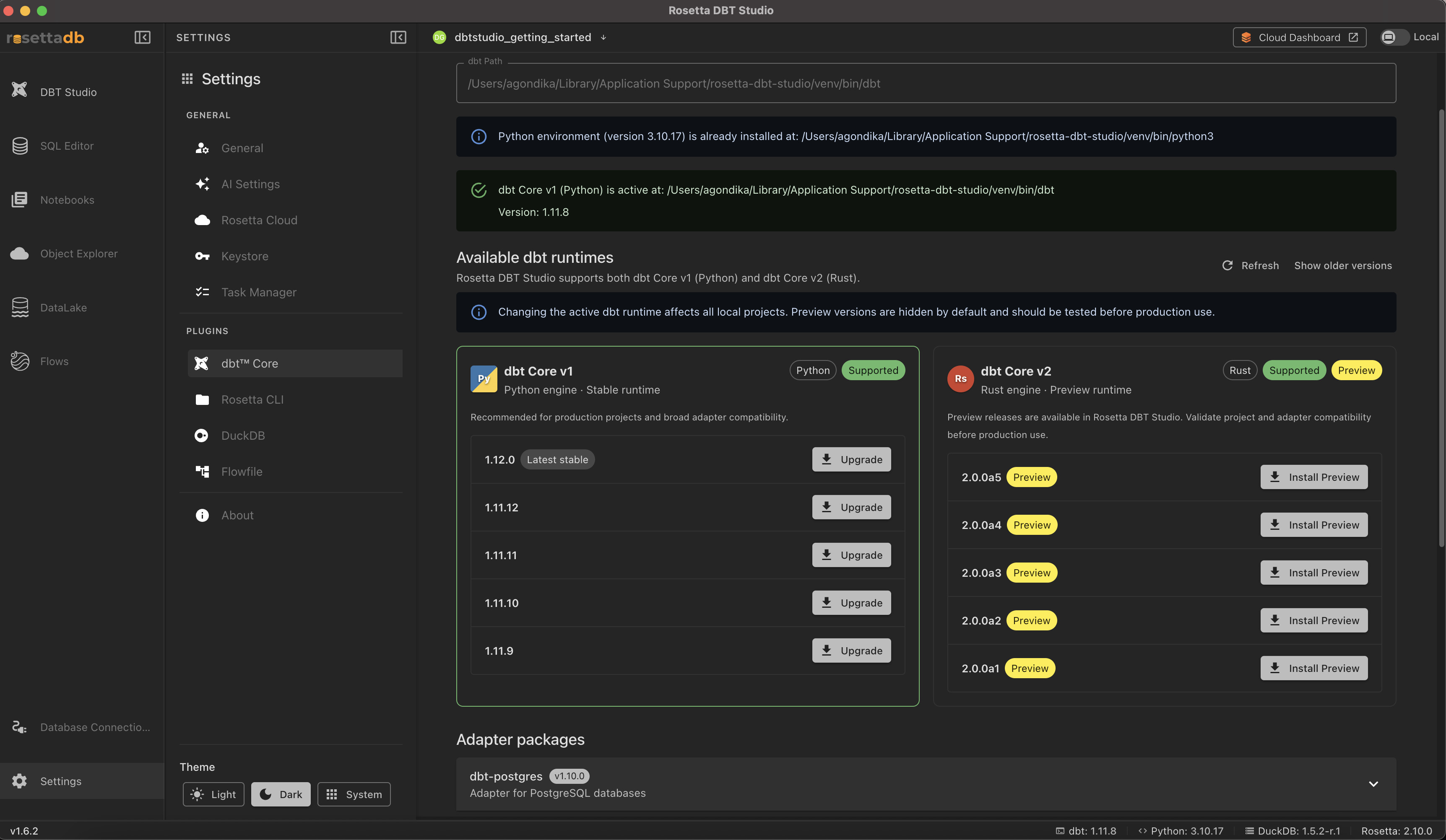
Rosetta DBT Studio supports two dbt™ runtimes side by side:
- dbt Core v1 (Python) — the original Python engine, marked Supported. Recommended for production projects and broad adapter compatibility.
- dbt Core v2 (Rust) — a newer Rust-based engine, currently in Preview. Validate your project and adapter compatibility before using it in production.
Note: Changing the active dbt™ runtime affects all your local projects.
- dbt Path — where the active dbt™ installation lives.
- Available dbt runtimes — install or upgrade versions of either runtime. Refresh reloads the list, and Show older versions reveals earlier releases.
- Adapter packages — the database adapters installed alongside dbt™ (
dbt-postgres,dbt-snowflake,dbt-bigquery,dbt-redshift, and others). Expand one to see its details.
Rosetta CLI
Manages the Rosetta CLI that powers the rosetta commands in the terminal panel.
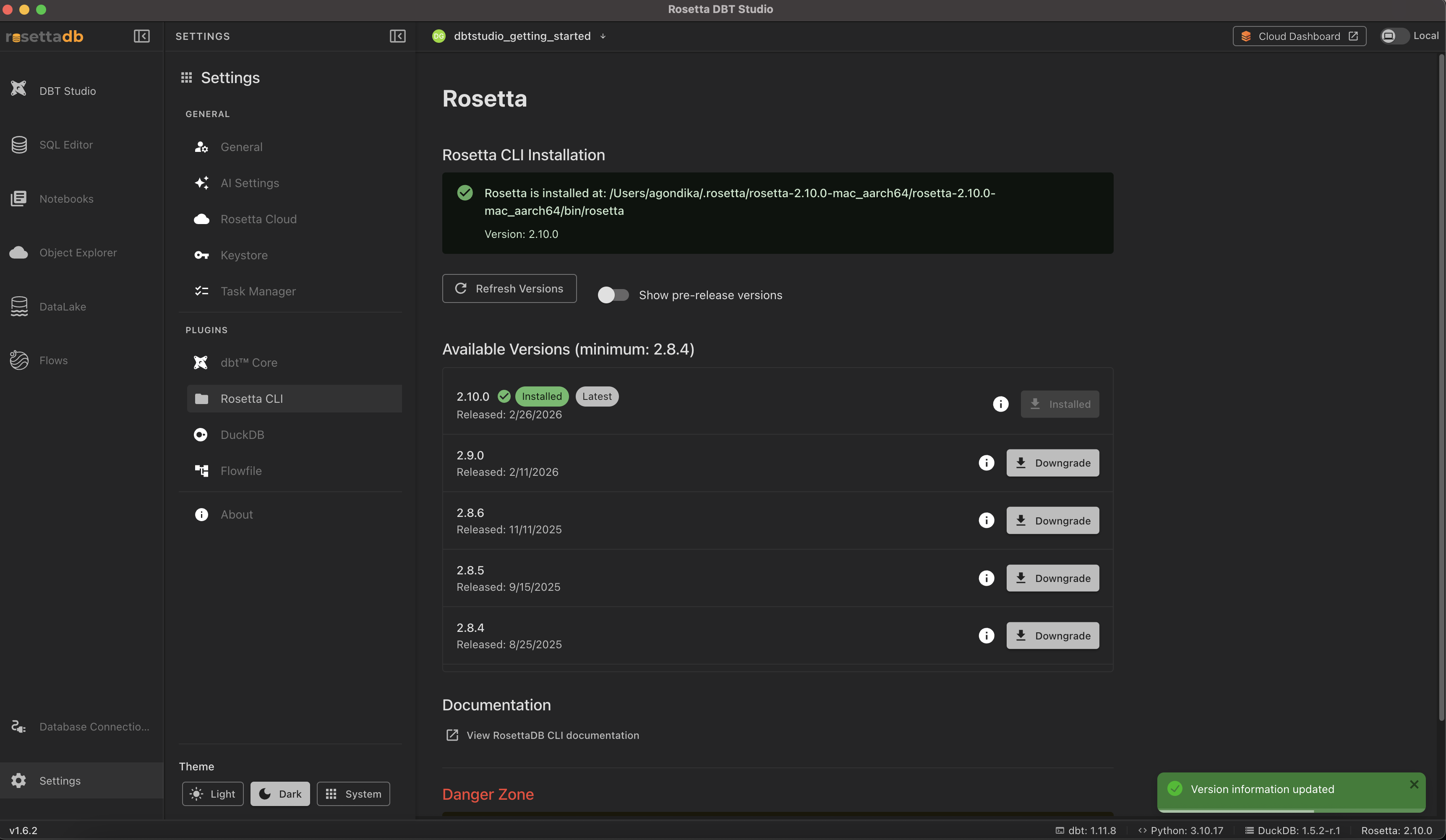
- Rosetta CLI Installation — the install path and current version.
- Refresh Versions — reload the available version list.
- Show pre-release versions — include pre-release builds in the list.
- Available Versions — install a different version. The current one is marked Installed and Latest.
- Documentation — opens the RosettaDB CLI documentation.
- Danger Zone — Uninstall Rosetta CLI removes all Rosetta files and resets the configuration. This cannot be undone.
DuckDB
This is the app's own internal DuckDB instance — not a database connection you create. Rosetta uses it for caching, data preview, and persistent storage.
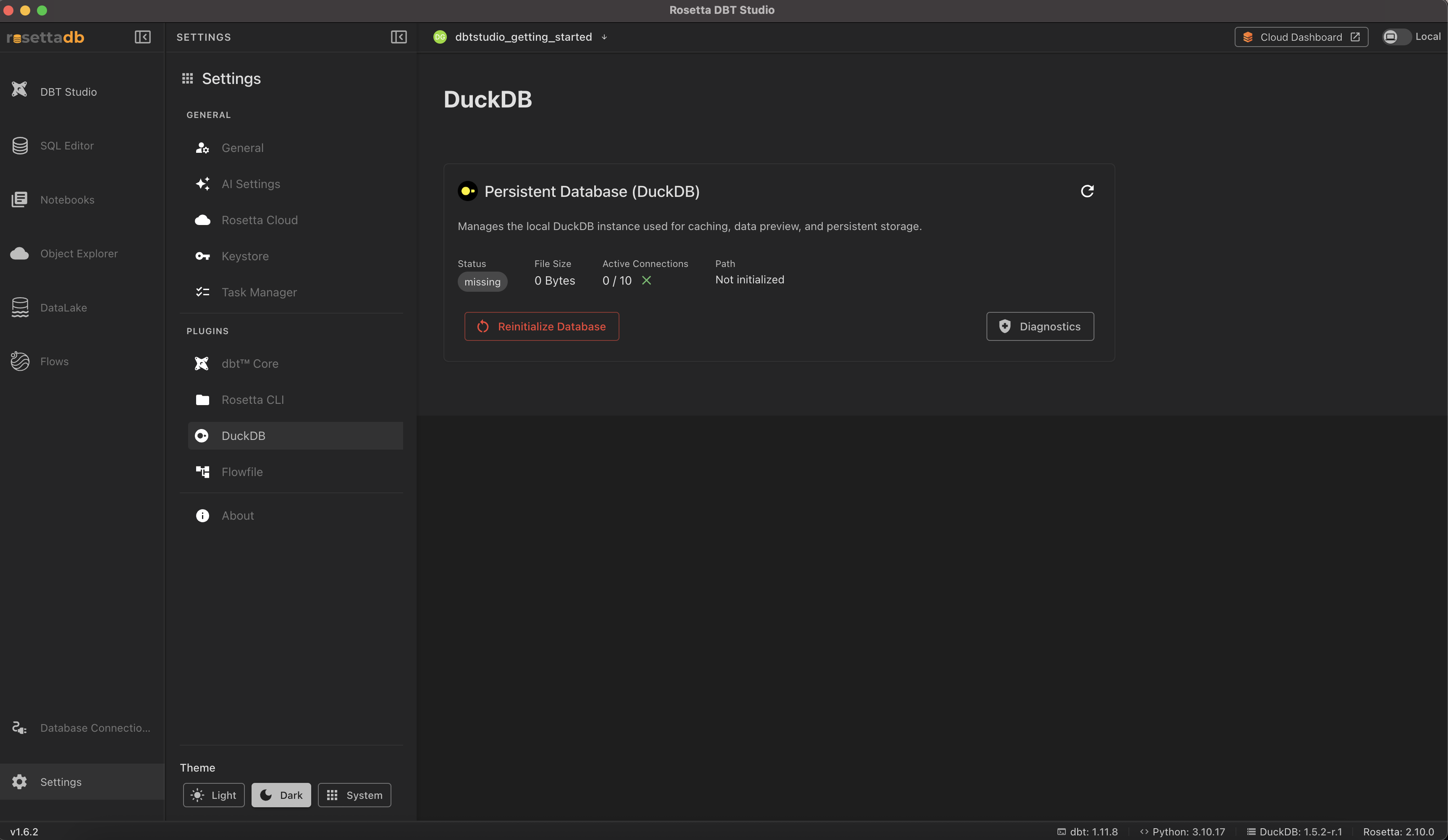
- Status, File Size, Active Connections, and Path — the current state of the internal database.
- Reinitialize Database — rebuild the instance.
- Diagnostics — check for problems.
Tip: If data previews stop working, reinitializing the database or running diagnostics is the place to start.
Flowfile
Flowfile powers the Flows screen. It's installed separately, into the app's Python environment.
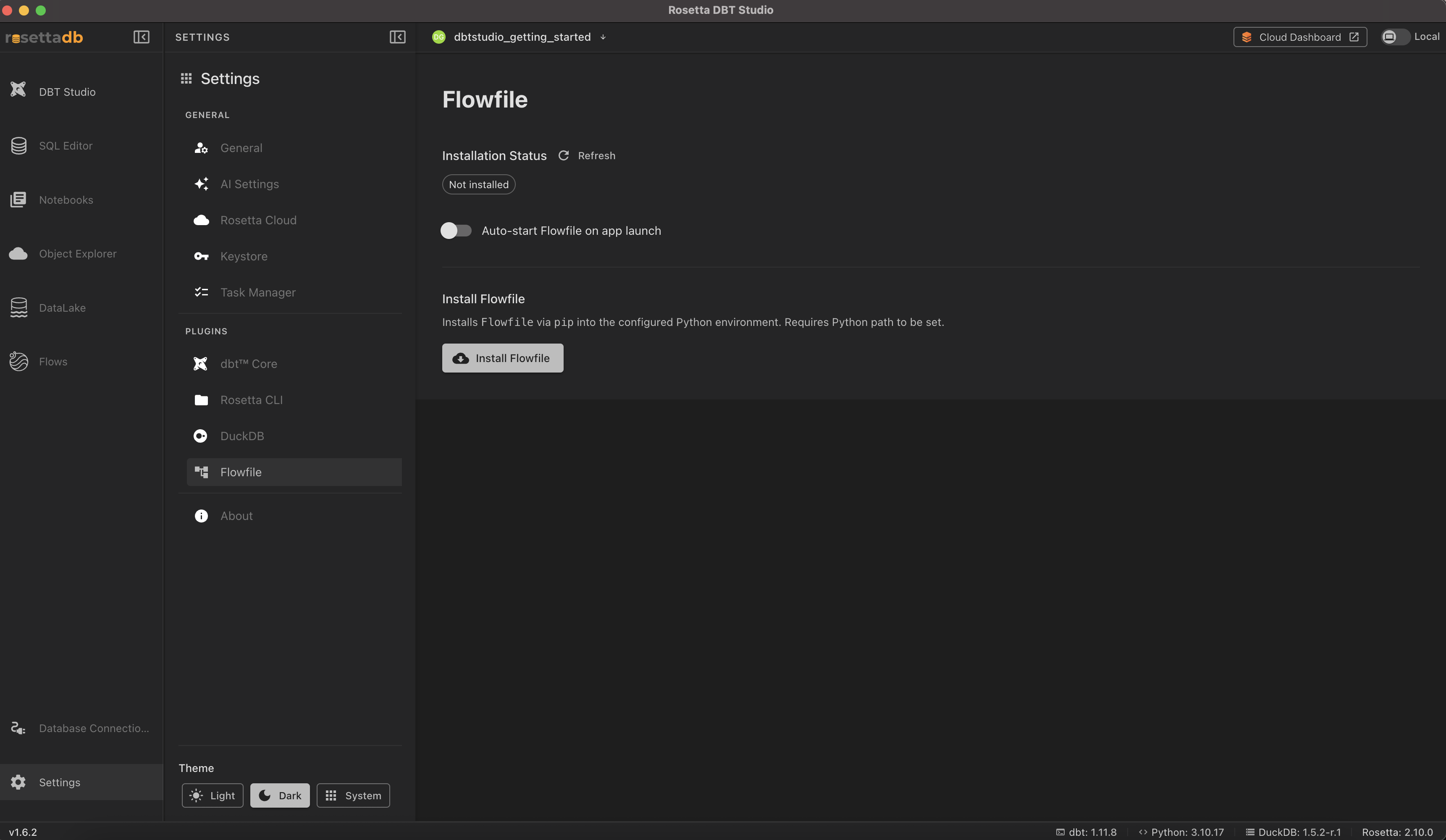
- Installation Status — whether Flowfile is installed. Click Refresh to re-check.
- Auto-start Flowfile on app launch — start the Flowfile service automatically when the app opens.
- Install Flowfile — installs Flowfile into the configured Python environment.
About
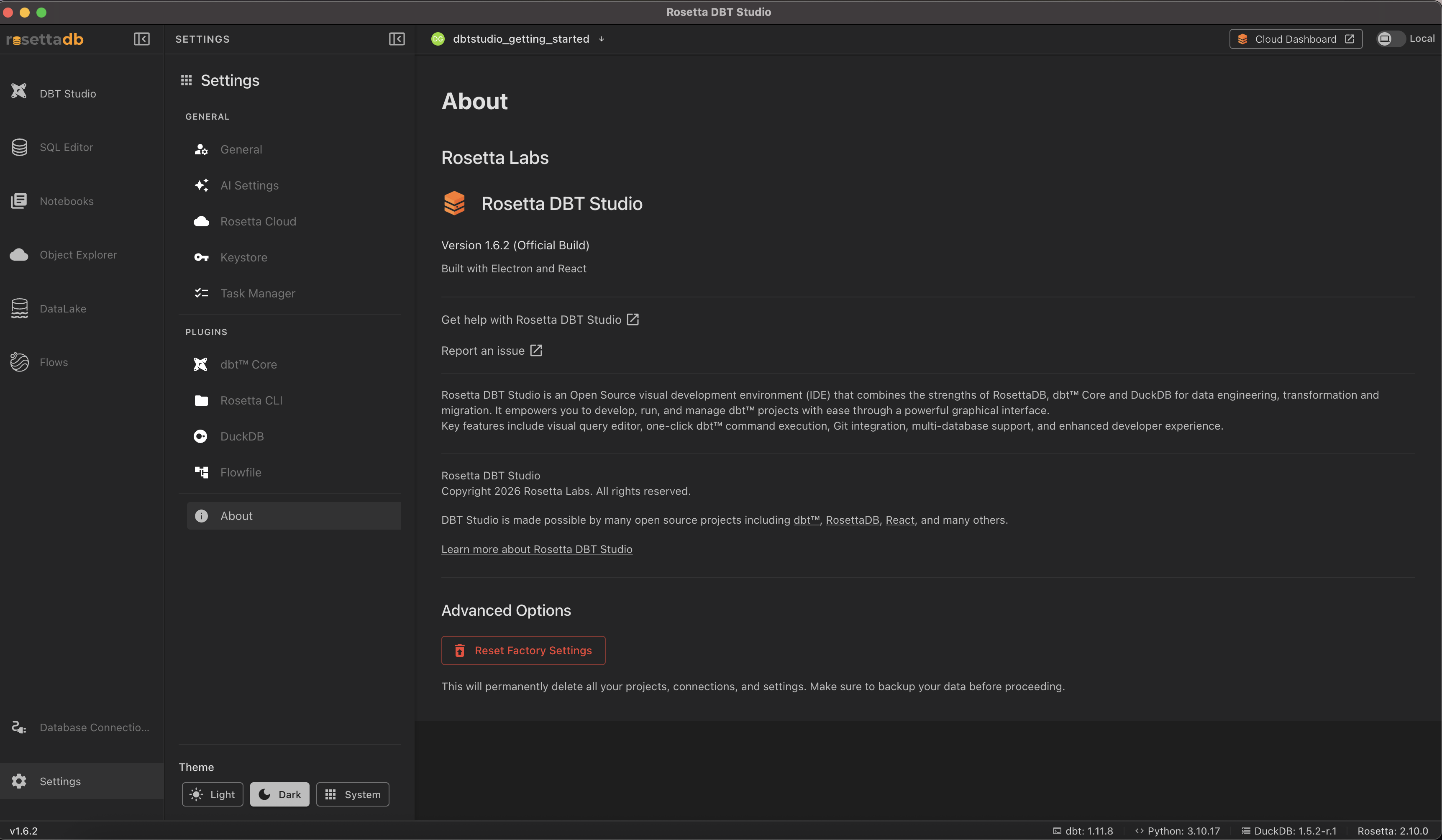
- Version and build information for Rosetta DBT Studio.
- Get help with Rosetta DBT Studio and Report an issue links.
- Advanced Options → Reset Factory Settings permanently deletes all your projects, connections, and settings. Back up your data first.
Video
For a walkthrough of deploying to the cloud and setting up CI/CD, see the official video: Cloud Deploy & CI/CD in Rosetta DBT Studio
Video
For a walkthrough of using the AI agent inside a notebook, see the official video: AI Agent in Notebooks
Common Issues
Check for Updates finds nothing → You're already on the latest version. The version you're running is shown under Installation Information.
Flowfile won't install → Installing Flowfile requires the Python path to be set. Check the dbt™ Core section to confirm the Python environment is installed.
Cloud features are unavailable → Confirm the Rosetta Cloud section shows you're connected to the Cloud Dashboard.
A background task seems stuck → Check Task Manager for its status, and cancel it there if needed.
dbt Core v2 features behave unexpectedly → v2 is a Preview runtime. Switch back to dbt Core v1 for production work until v2 is out of Preview.