Object Explorer
Overview
Object Explorer connects Rosetta DBT Studio to cloud storage services, so you can browse your buckets and files without leaving the app.
This is different from a database connection — Object Explorer works with object storage (files in buckets), not databases.
Open it from Object Explorer in the left sidebar.
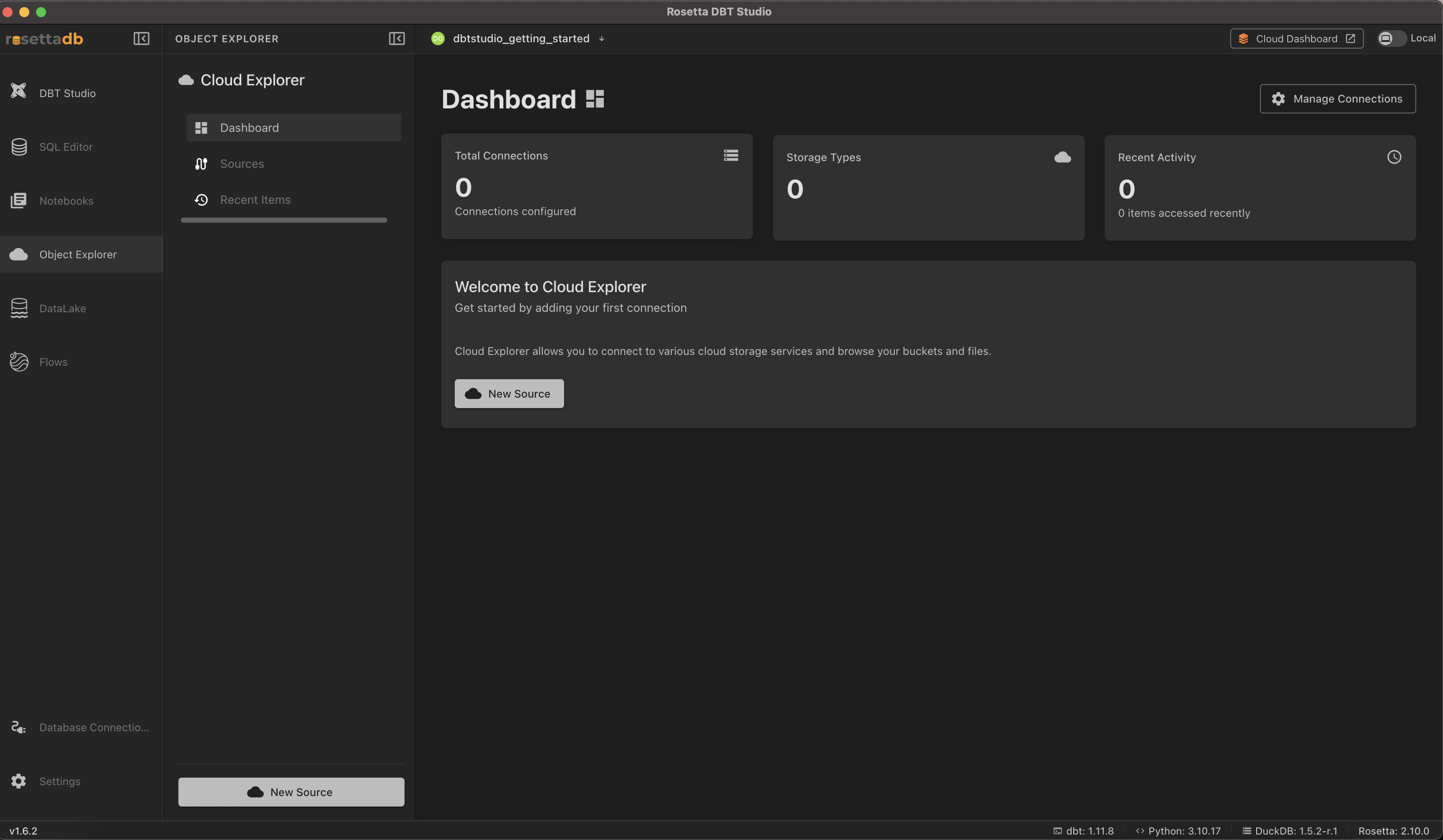
Dashboard
The dashboard gives you an overview:
- Total Connections — how many storage connections you've configured
- Storage Types — the variety of providers connected
- Recent Activity — items you've accessed recently
Adding a Connection
Click New Source (from the dashboard or the sidebar) to connect a storage provider.
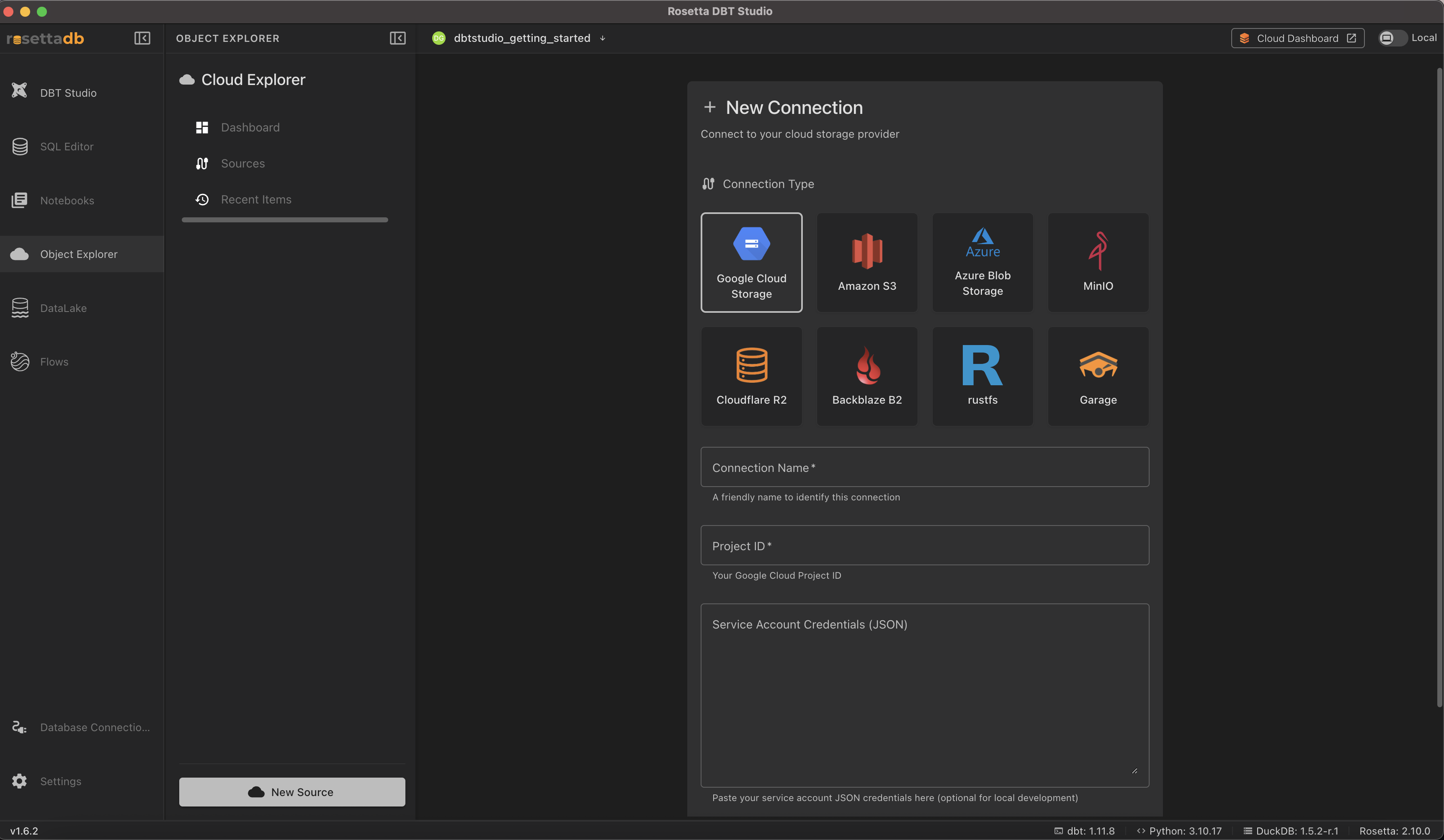
Supported providers:
- Google Cloud Storage
- Amazon S3
- Azure Blob Storage
- MinIO
- Cloudflare R2
- Backblaze B2
- rustfs
- Garage
Select a provider, then fill in its connection details — these vary by provider. For Google Cloud Storage, for example, you provide a Connection Name, Project ID, and optionally your Service Account Credentials (JSON) for local development.
Sources
The Sources tab is where you browse your connected storage — your buckets and the files inside them.
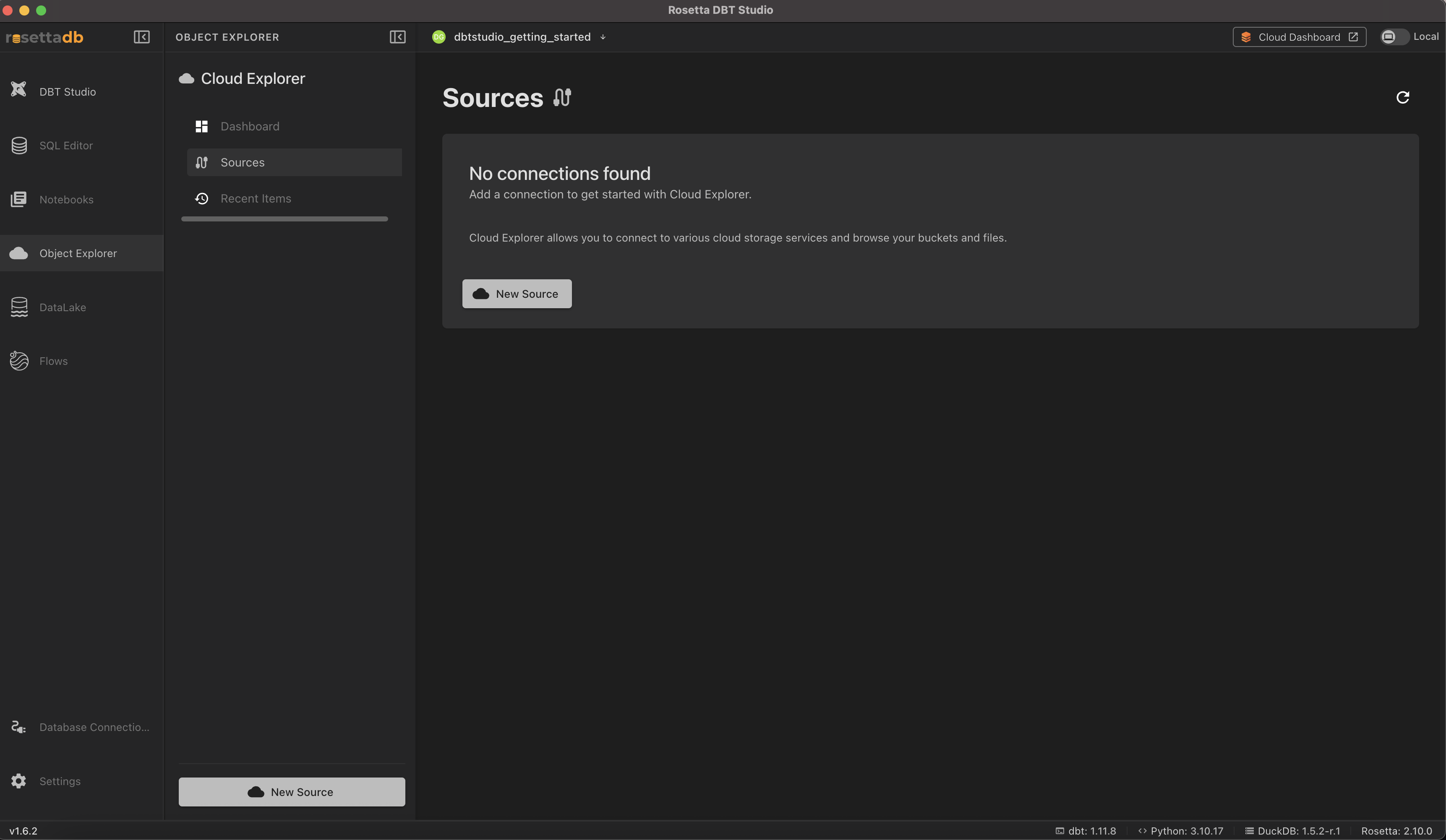
Once you've added a connection, it appears here, and you can browse into its buckets and files.
Recent Items
The Recent Items tab lists files and buckets you've accessed recently, so you can jump back to them quickly.
Common Issues
No connections found on Sources → Add a connection first — click New Source from the Dashboard or the sidebar.
A connection fails to add → Double check the credentials for your provider. For providers using service account JSON, make sure the full JSON is pasted in correctly.