Flows
Overview
Flows is where you build visual data pipelines inside Rosetta DBT Studio.
Everything else in the app works with data that's already in your database — dbt™ transforms tables that already exist in your warehouse. Flows handles the step before that: pulling data in from files, databases, APIs, or cloud storage, reshaping it, and writing it back out. Instead of writing that logic in code, you build it visually — dragging nodes onto a canvas and connecting them into a pipeline.
What is Flowfile?
Flows doesn't have its own pipeline engine. It runs Flowfile, an open-source visual ETL tool built on Polars, embedded directly inside the Rosetta DBT Studio window.
So the distinction is:
- Flows is the screen in Rosetta DBT Studio — where you start the service and access the tool
- Flowfile is the tool itself — the canvas, the nodes, and the engine that runs your pipelines
Because Flowfile is a separate open-source project, it isn't bundled with the app. You install it once, and Rosetta manages it from there.
Note: Don't confuse Flows with Pipeline Builder. Pipeline Builder chains dbt™ commands (like
dbt depsanddbt test) into a single job. Flows moves and transforms data itself. They're separate features solving different problems.
Installing Flowfile
Flowfile has to be installed before Flows will work.
- Go to Settings → Flowfile
- Click Install Flowfile — this installs it via
pipinto the app's configured Python environment - Wait for Installation Status to show an installed version
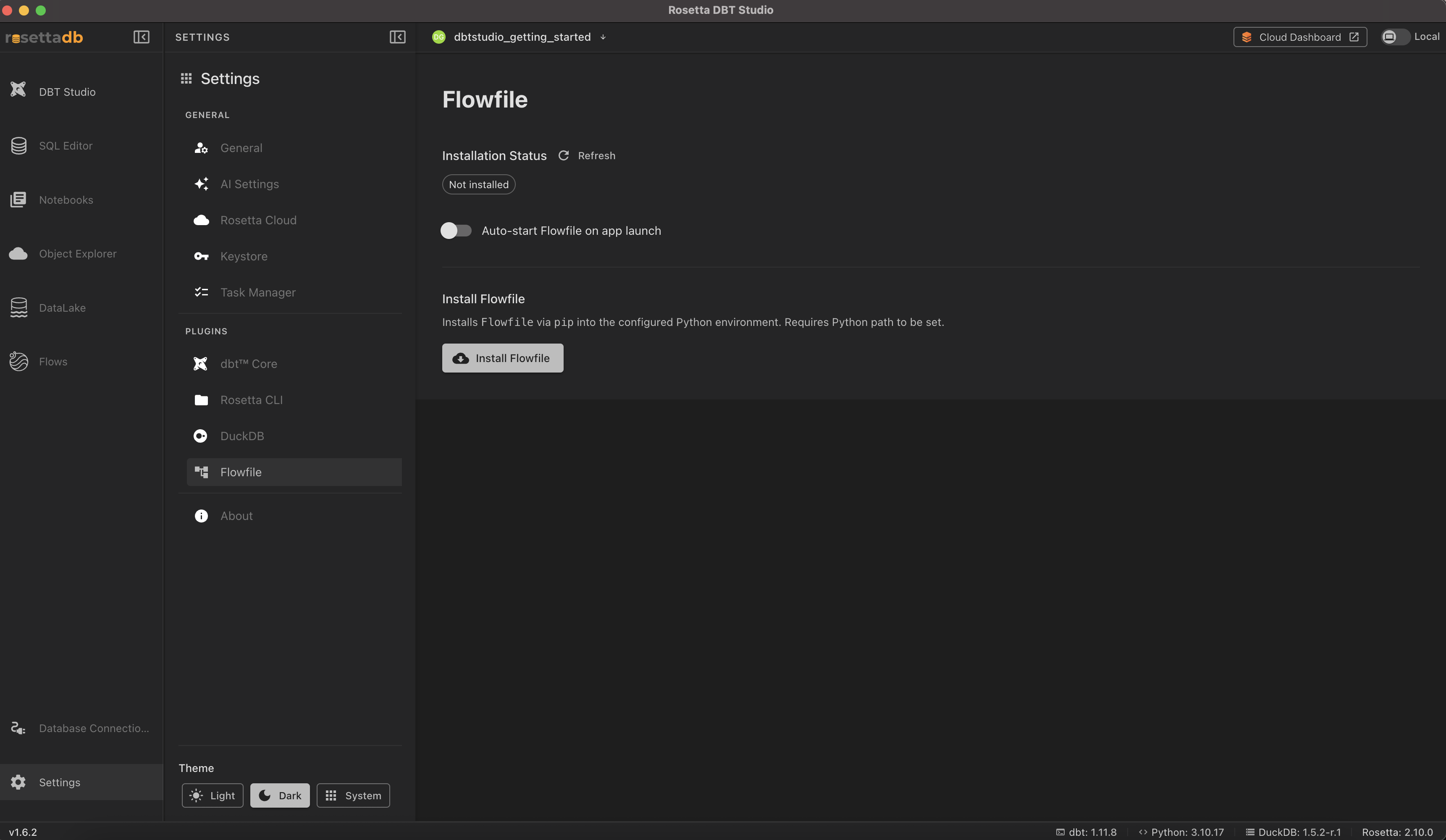
Optionally, turn on Auto-start Flowfile on app launch so the service starts automatically whenever you open the app.
Note: Installing Flowfile requires the Python path to be set. If it fails, check Settings → dbt™ Core to confirm the Python environment is installed.
Once installed, the same settings page offers Upgrade Flowfile to update it, and Uninstall Flowfile to remove it from your Python environment.
Starting Flowfile
Open Flows in the left sidebar. If the service isn't running, click Start. Flowfile then launches inside the same window.
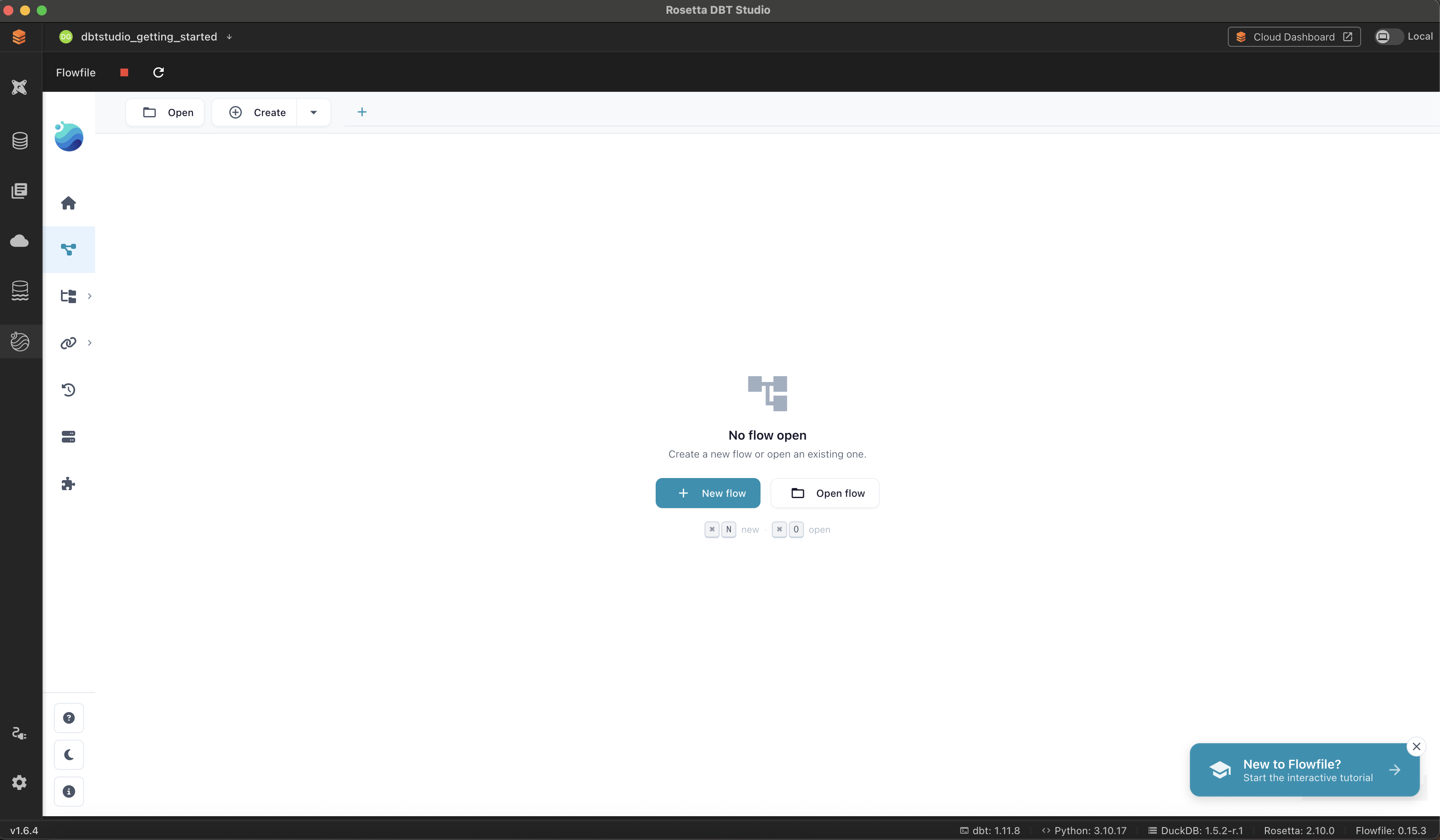
From here, click New flow to start building, or Open flow to open one you've saved before.
Interactive Tutorial
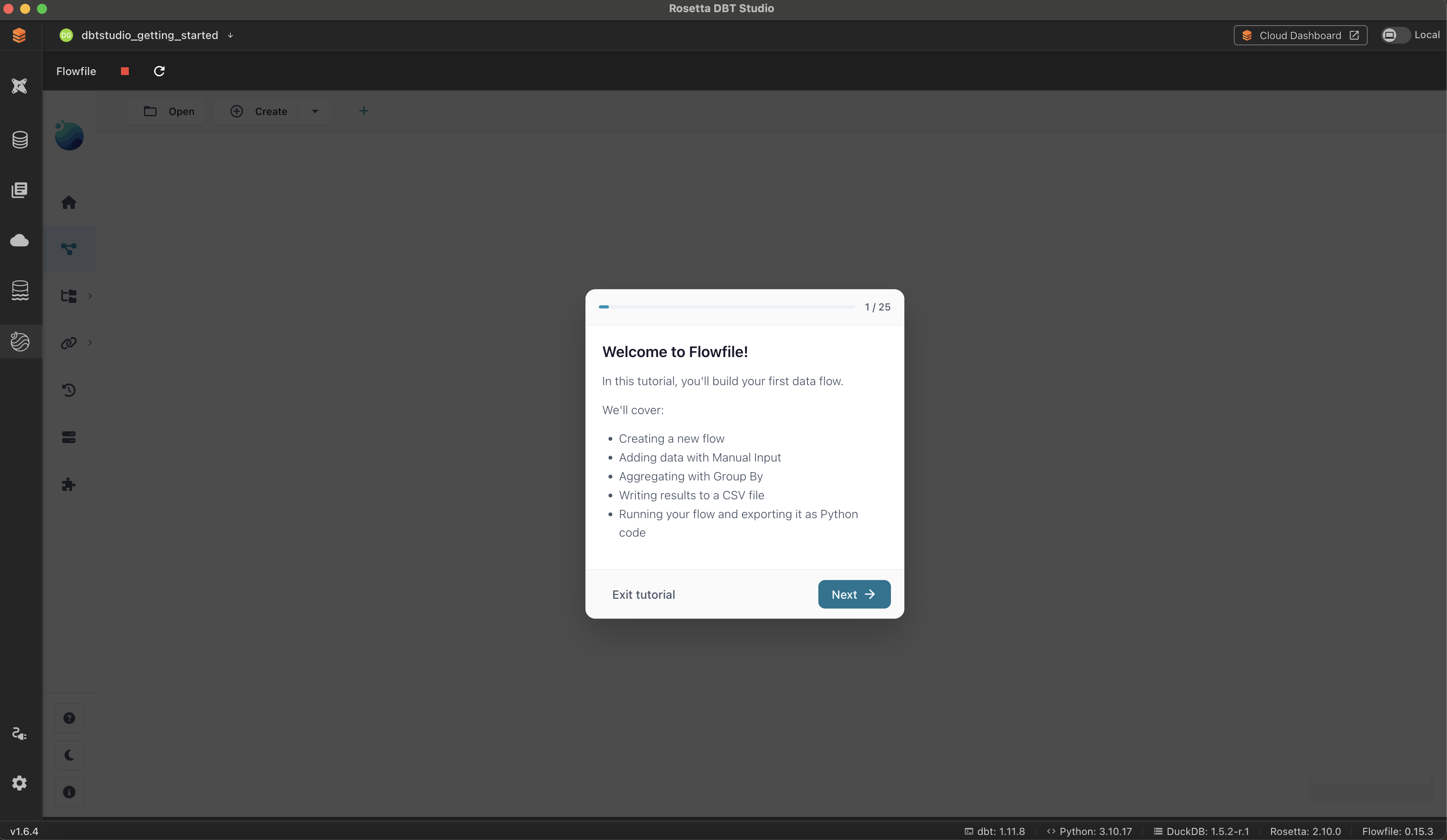
If you're new to Flowfile, click New to Flowfile? Start the interactive tutorial to be walked through building your first flow end to end — creating a flow, adding data with Manual Input, aggregating with Group By, writing results to a CSV file, and exporting the flow as Python code.
The Flow Canvas
A flow is one saved pipeline. You can create and keep as many as you need, and switch between them as tabs.
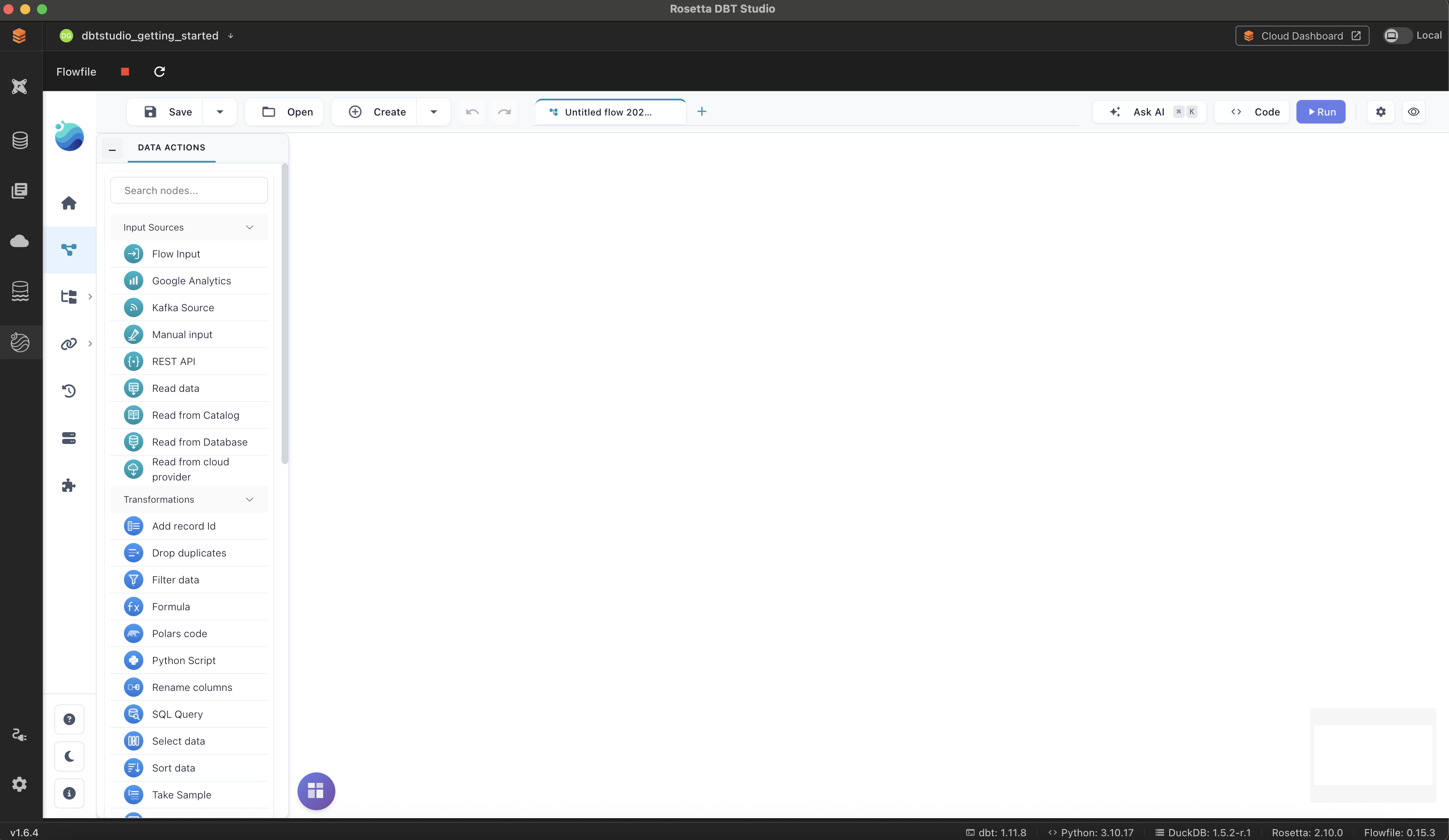
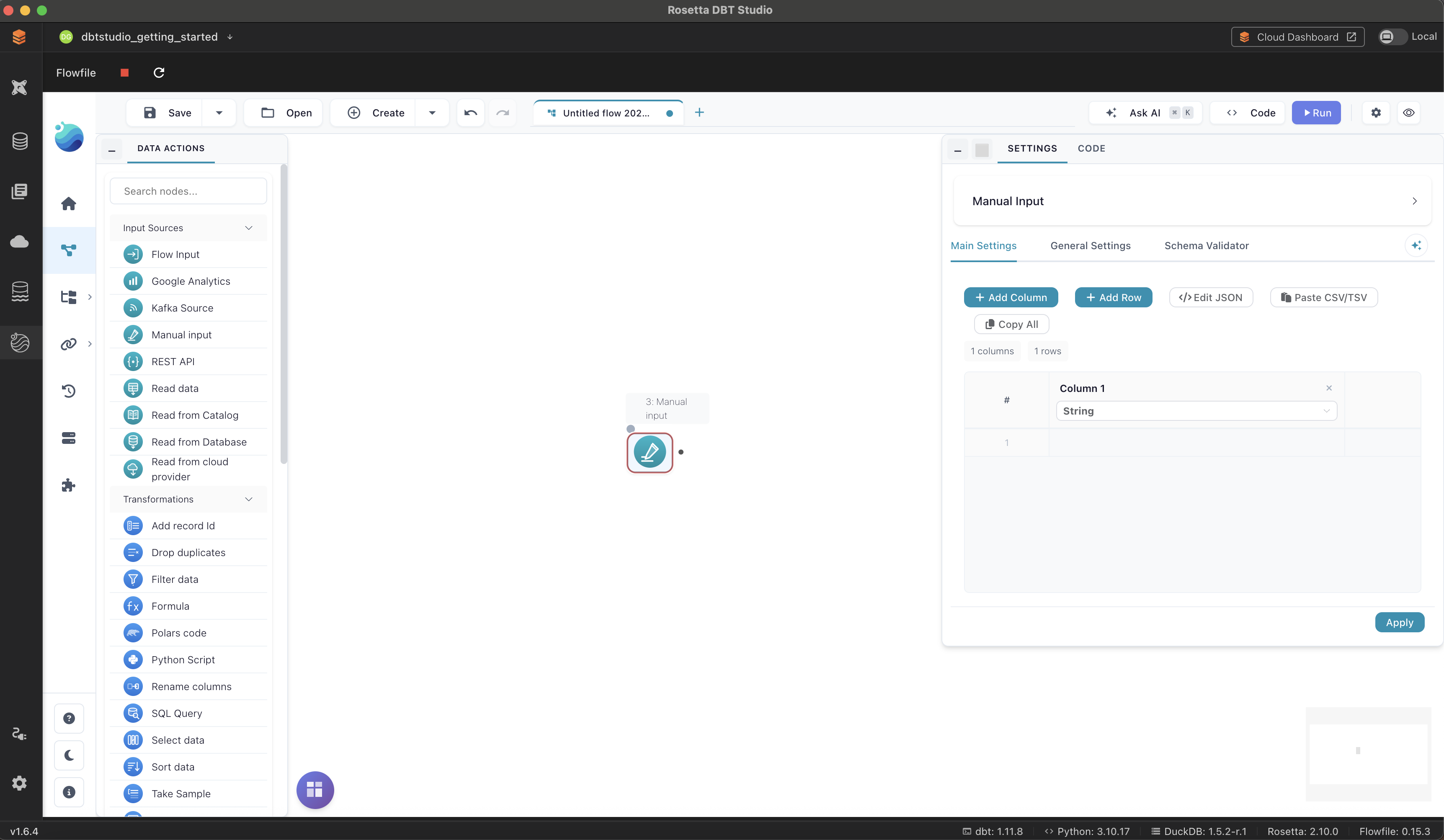
The node library sits on the left, searchable and grouped into:
- Input Sources — where data comes from: Flow Input, Google Analytics, Kafka Source, Manual input, REST API, Read data, Read from Catalog, Read from Database, Read from cloud provider
- Transformations — what you do to it: Add record Id, Drop duplicates, Filter data, Formula, Polars code, Python Script, Rename columns, SQL Query, Select data, Sort data, Take Sample, and more
Building a Flow
- Click a node in the library to add it to the canvas. Its settings open on the right — configure it, then click Apply.
- Add another node, then drag from the first node's output dot to the second node's input dot to connect them.
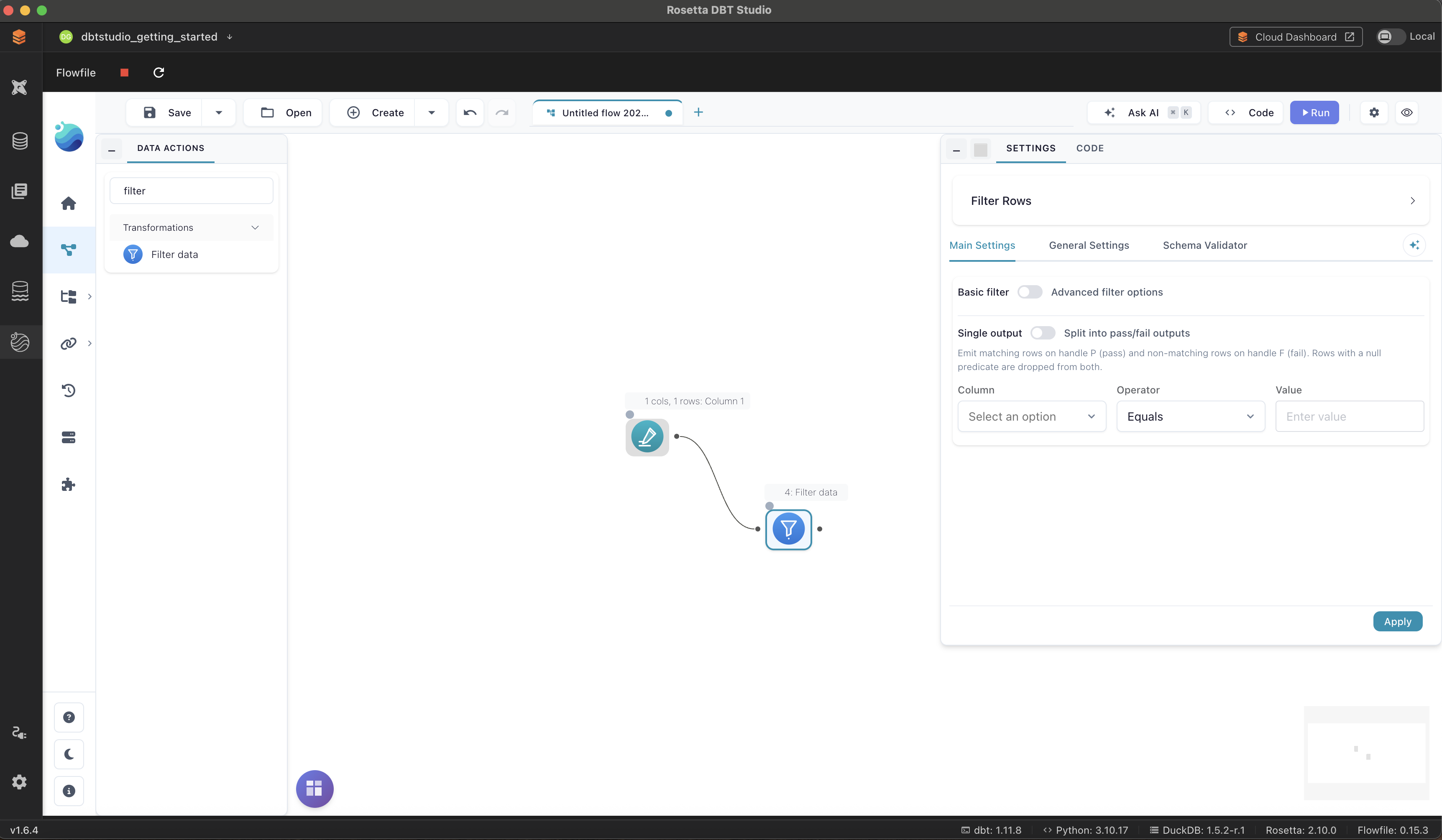
Each node's settings panel has Main Settings, General Settings, and Schema Validator tabs. Connected nodes show the data flowing between them — in the example above, the Manual Input node passes one column and one row into a Filter node.
When your flow is ready, click Run in the toolbar. The toolbar also has Save, Open, Code (to see the underlying code your flow generates), and Ask AI for AI-assisted building.
Common Issues
Start does nothing, or Flowfile won't launch → Confirm Flowfile is installed under Settings → Flowfile. If it shows Not installed, install it there first.
Installation gets stuck → Installing Flowfile pulls in several dependencies and can take a few minutes. If it doesn't finish, restart the app and check Settings → Flowfile again — the Refresh button re-checks the installation status.
Nodes won't connect → Drag from the small dot on the edge of one node directly to the edge of the next node.