Database Connections
Overview
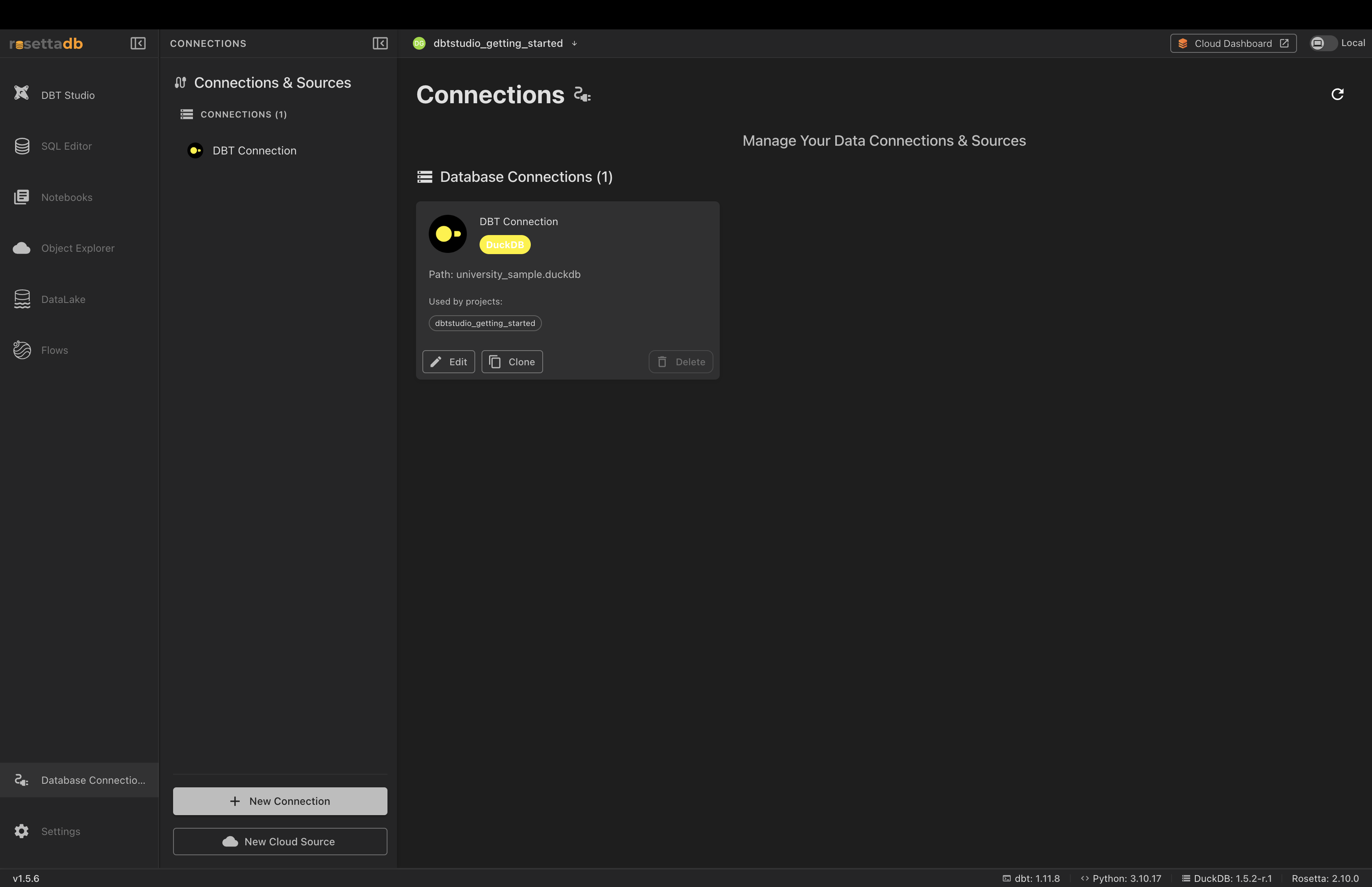
A connection is the saved link between Rosetta DBT Studio and a database — where your data lives. dbt™ doesn't store data itself; it transforms data that already sits in a database. So before you can build any models, Rosetta needs to know which database to read from and write to.
You manage all of this from the Database Connections screen in the left sidebar.
Supported Databases
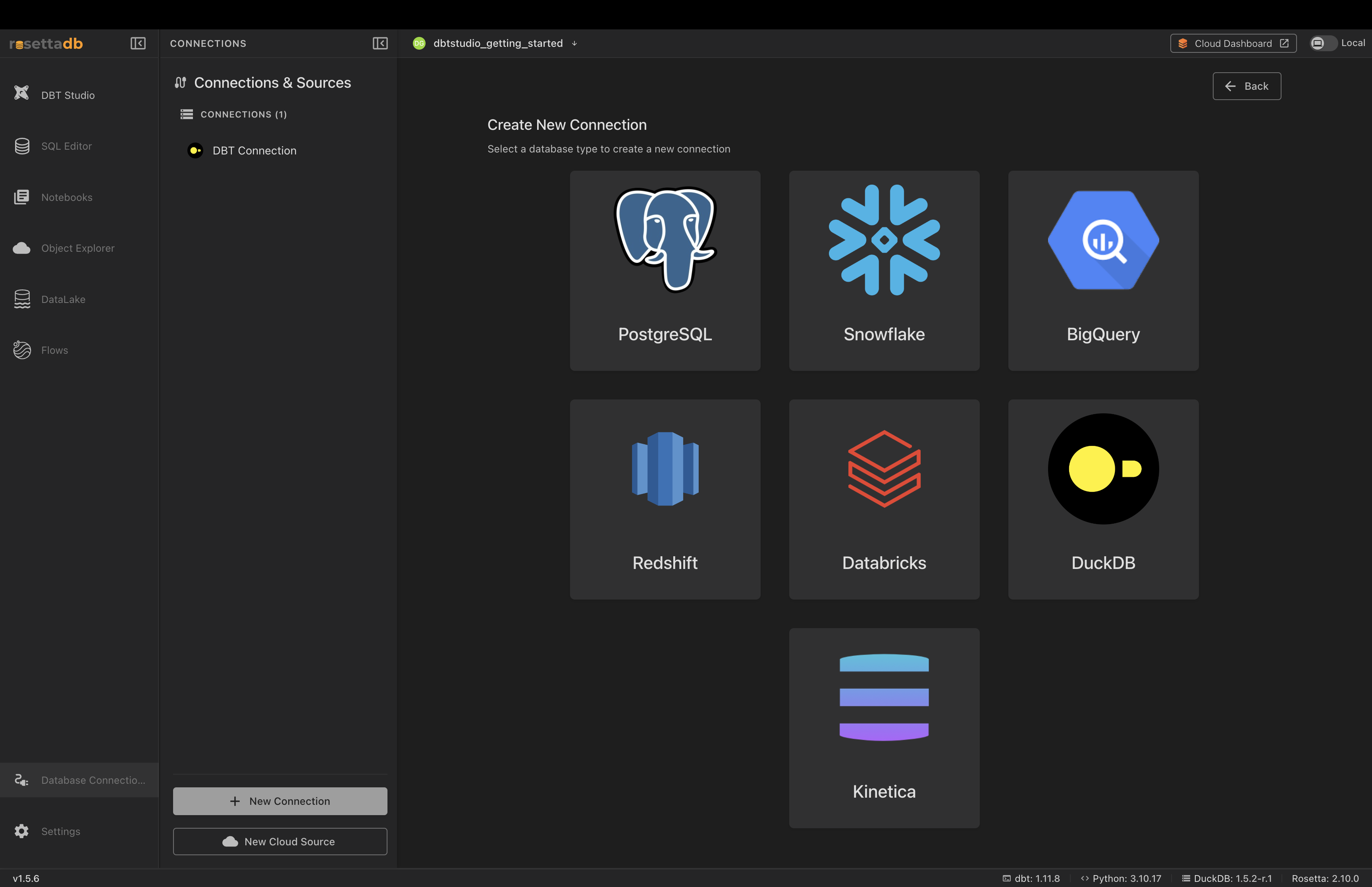
Rosetta DBT Studio connects to:
- PostgreSQL
- Snowflake
- BigQuery
- Redshift
- Databricks
- DuckDB
- Kinetica
The Connection Card
Each saved connection appears as a card showing its name, database type, path or host, and which projects use it.
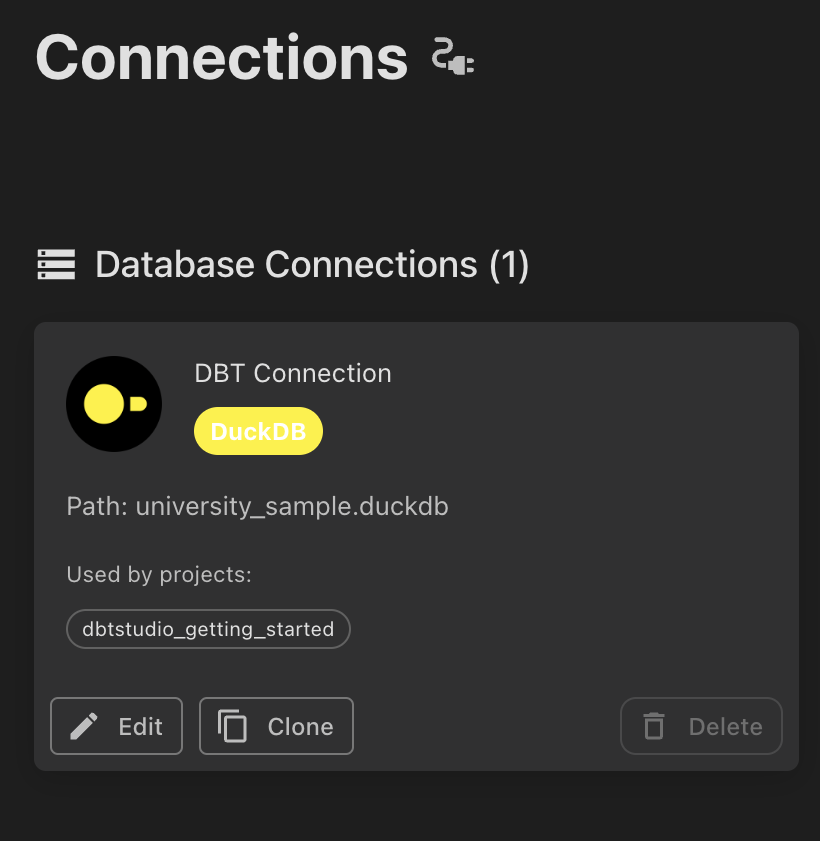
Each card has three actions:
- Edit — change the connection's settings
- Clone — copy the connection to create a new one with the same settings (useful for pointing at a different database without re-entering everything)
- Delete — remove the connection
Note: The Used by projects list shows which projects rely on a connection. One connection can power multiple projects.
Creating a Connection
Step 1 — Choose a Database Type
- Click New Connection at the bottom of the panel
- Select your database type from the grid
Step 2 — Fill in the Connection Details
The fields depend on the database type you picked. For DuckDB, you provide:
- Connection Name — a label for your reference
- Database File Path — the path to your DuckDB file (use the folder icon to browse)
- Schema — the schema name (defaults to
main)
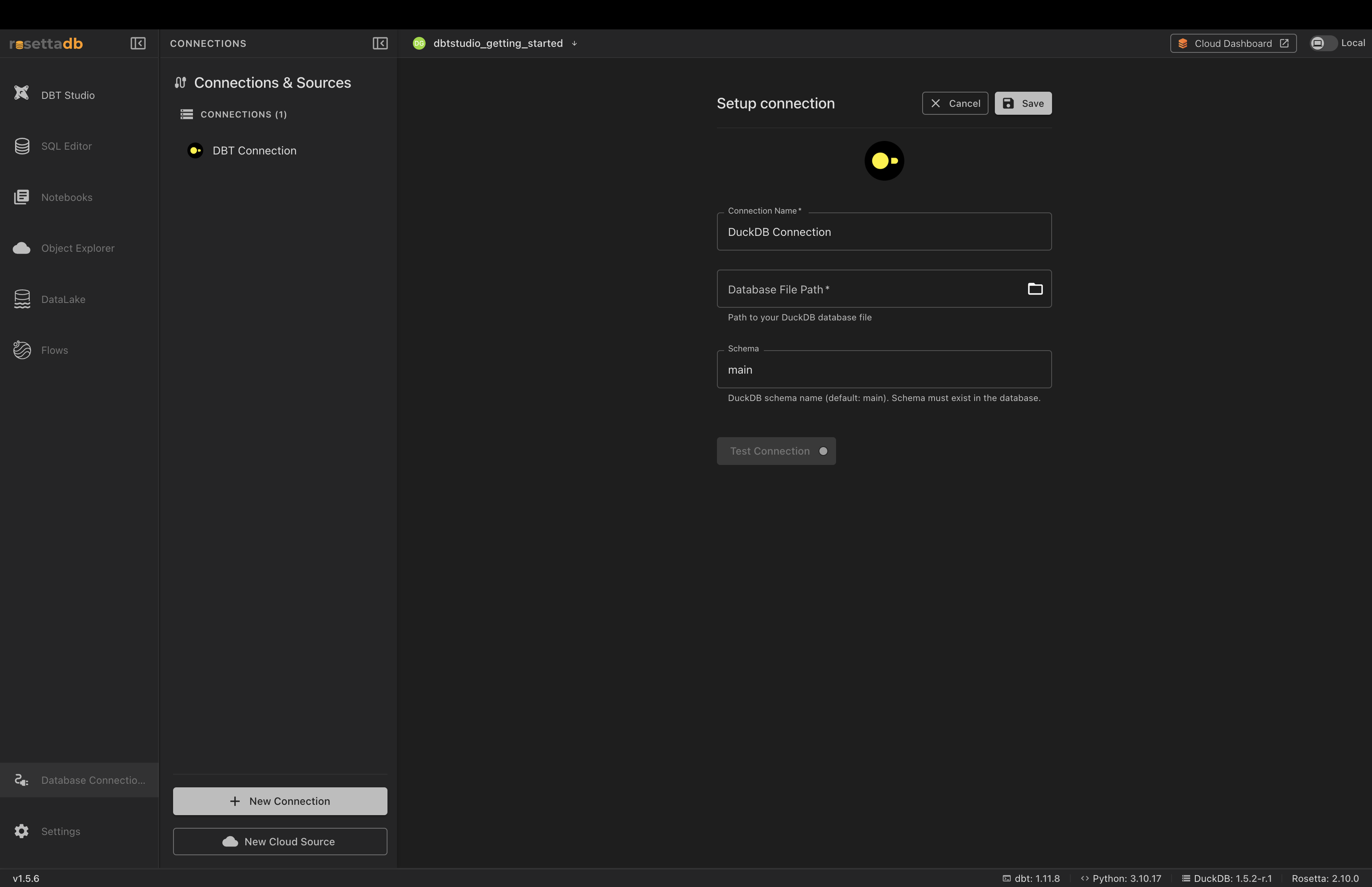
Note: Cloud databases (Snowflake, BigQuery, Redshift, Databricks) ask for host or account details and credentials instead of a file path.
Step 3 — Test and Save
- Click Test Connection to confirm Rosetta can reach the database
- Click Save
Your new connection now appears in the Database Connections list, ready to use in a project.
New Cloud Source
The New Cloud Source button (below New Connection) connects Rosetta to cloud storage rather than a database. See Cloud Explorer for browsing cloud sources.
Common Issues
Test Connection failed
→ Check your details are correct — for DuckDB, confirm the file path points to a real .duckdb file; for cloud databases, verify the host and credentials.
Schema must exist error (DuckDB)
→ The schema name you entered doesn't exist in the database. Use main, or create the schema first.